Timesheet Errors That Cost You Money (and How to Fix Them)

Nobody wakes up on a Friday excited to fill in their timesheet. Don’t get me wrong—we all LOVE Fridays but we don’t care about timesheets or reconstructing our weeks. Right?!
Filling in your timesheet is God-awful because every week, it’s the same thing: staring at an empty grid, trying to remember what you did, when and for which clients. It’s just boring admin work that takes so much time.
But what if I told you it wasn’t just boring admin stuff? And that your terrible memory (no offense) could be costing your business a small fortune? #facts
According to PR Newswire, Tribes.AI survey estimated that close to 1 in every 5 billable hours never gets recorded, which translates to a loss of roughly $50,850 per employee, per year, in professional services.
So, the math is pretty simple: if you don’t log (and bill for) all your billable hours, you lose profit.
And yes, we should take surveys with a pinch of salt, always. But even if the real number is half of that, would you be okay with it? Would you be okay with losing thousands of dollars every year just because you can’t remember eVeRyThInG you’ve done?
Yeah… my point exactly.
Timesheets are inevitable if you want to run a profitable business. And that’s the bad news.
The good news is that all timesheet errors are boringly predictable, and all predictable problems have fixes.
So, in this article, we’re getting practical. We’ll go through 8 common timesheet errors, what they cost you, and how to stop doing them ASAP.
Grab your favorite cup of coffee, and let’s go. I promise this read won’t hurt. Much.
Key Takeaways:
- Delaying timesheet entries reduces accuracy: daily time logging is 66% accurate, compared to 35% when you log less than once a week.
- Small tasks, emails, client calls, and meetings add up to billable time that often goes unrecorded.
- Rounding hours inconsistently can lead to underbilling, overbilling, and client disputes over invoice accuracy.
- Using estimates instead of actual time data can result in underpriced projects, low retainers, and unpaid work.
- Assigning hours to the wrong projects makes project costs, profitability reports, and client budgets unreliable.
- Vague timesheet descriptions make invoices harder to justify and can lead to client questions, discounts, and write-offs.
- Duplicate time entries and overlapping activities can cause accidental overbilling and damage client trust.
- Memtime helps prevent these common timesheet errors by automatically recording your computer activity in the background, giving you a clear timeline of how you spend your workday.
- With Memtime, you can review your activities, assign time to the right projects, and create more accurate timesheets without relying on memory or manual tracking.

Error #1: Filling in your timesheet from memory
This is the classic one.
“I’ll do it later” turns into “I’ll do it tomorrow”, which turns into “I’ll do it Friday”, which ultimately turns into a sped up, imaginary summary of your week. And you usually write it with a lot of confidence and zero evidence. 🙂
And that’s okay; it happens to all of us. Memory is a terrible bookkeeper because it remembers the big, dramatic stuff (like a 2-hour webinar) and deletes the rest. Memory and accuracy don’t really go together.
Accelo’s Time is Money study found that people who log their time at least once a day are 66% accurate, those who log their time weekly are 47% accurate, and people who complete their timesheet less than once a week are only 35% accurate. It also found that moving to daily entries could cut lost time from 23% to under 5%.
Additionally, research compiled by Ann Guinn for the American Bar Association says waiting until the end of the day already loses 10-15% of billable time. In other words, if you bill 1,500 hours a year at €80, a 10% leak is €12,000. Ouch.
The fix
The fix for this timesheet error is to stop asking your brain to remember, and have someone (or something?) remember it for you.
That “someone” doesn’t have to be your PA or a colleague with a great memory and no boundaries—it can be your computer. This is the idea behind automatic time tracking, which is what we do at Memtime.
Memtime runs silently in the background and records which apps, docs, emails, and browser tabs you used (even calls), and for how long. There are no timers to start and stop.
As a result, you get a precise and accurate timeline of your day (we call it the Memory Aid).
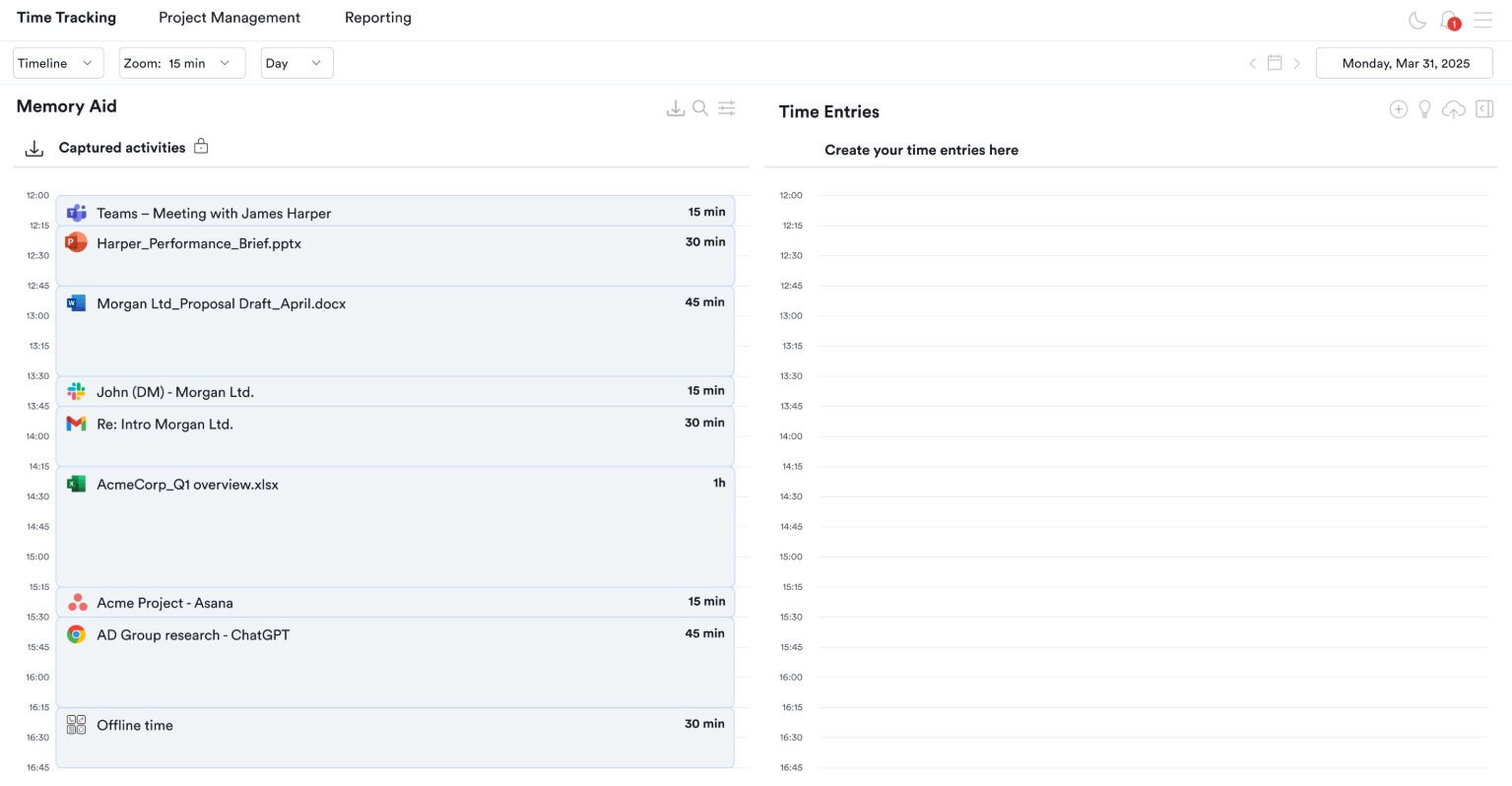
You open it, see what actually happened, and turn your captured activity into time entries. And from those time entries, the timesheets build themselves. So, technically, you’re not remembering your week, you’re just reading it.
Now, I know what you’re thinking: “Isn’t that a little creepy? Having a tool that captures everything you do on your computer?”
Fair question. With Memtime, all data stays on your device. There are no screenshots, and nobody else can see your timeline but you. You decide what becomes a time entry and what gets left behind or deleted.
If you’re curious how that works in practice, check out this quick little video:
Error #2: Missing the context switches & small tasks
This is a huge issue.
Your day, unfortunately, isn’t made of neat, 3-hour time blocks dedicated to each client. If I’m right, it’s made of a 10-minute email, a quick question from a colleague, a 5-minute file fix for 1 client, a call that “will just take a sec” with another client, etc. And you never seem to log those tiny tasks.
But those 5- and 10-minute tasks are the devil, and the devil is in the details.
Researcher Gloria Mark at UC Irvine has spent years measuring how fragmented office work really is. In an interview with Fast Company, she said people switched between activities roughly every 3 minutes in her observations, and it took an average of 23 minutes and 15 seconds to get back to interrupted work. (That figure comes from one fieldwork study with a lot of variation, so treat it as a general number, not a law.).
Now, let’s do a quick math based on what the researcher said.
If you miss just 10 minutes a day, that’s nearly 37 hours a year. Meaning, a full work week is gone, just because you didn’t log “one quick thing” each day. That’s proof that small tasks don’t stay small when you multiply them by 220 working days.
The fix
I think the fix is obvious: track everything by default, then sort it later. This works because it removes the decision.
And by decision, I mean you don’t have to think about the tasks you’re doing and whether they’re worth logging—you just work, and your activity gets logged for you. Everything gets captured first, and you decide what matters afterward, when you’re calm and not mid-task.
Here’s what tracking by default looks like in practice:
- You capture first and judge later. Automatic tracking records what you were working on while you were working. Meaning that a 6-minute file fix for a client and the email you answered between 2 calls all end up on your timeline. (This is what we built Memtime for, FYI.)

- You do a 5-minute review at the end of the day. Not on Friday or “when you have time”. Just a short daily look at your timeline so you can assign entries to the corresponding projects and tasks. You can even let Memtime do this step for you.
- You use the timeline to spot your own patterns. Once you can see your day, you start noticing who sends “quick questions” at 5:01 pm, which client’s emails take most of your mornings, and how often one “quick call” stretches into an hour. That’s useful for billing, and also for scope and pricing convos.
And boom, just like that, your small tasks became visible.
Error #3: Treating meetings, calls, and emails as “not real work”
You spent 45 minutes on a client call, and you logged... nothing. Because “you didn’t produce anything”.
Hold on.
What kind of logic is that?! I can vouch for you and confidently say that you definitely produced something: you gave advice, aligned expectations, and potentially prevented 3 future emails. In my book, that’s serious work and should be treated as such.
And that Accelo study I mentioned before agrees with me.
The study estimated that unrecorded meetings and calls leak over $32,000 in revenue per professional per year, and roughly a quarter of respondents said they never record meetings at all. If your day has lots of calls, you’re dealing with the most prominent category of invisible work: everyone remembers calls happening, and nobody bills for them.
The fix
Meetings and calls are tricky because they happen around your computer work, not necessarily inside it.
So, the fix here is a tool that already knows about them. And that’s precisely what Memtime is about.
Let’s talk about meetings first. You can connect your calendar to Memtime and see what really happened.
Memtime connects to Google Calendar, Outlook, and iCloud Calendar, and you can connect more than one. Your scheduled meetings show up right next to your automatic timeline, so you see what was planned and what you were actually doing. Video calls in Teams or Outlook are tracked automatically too, since Memtime records the programs you use.
The most useful part here is the gap between what you planned and what actually happened. Your calendar says 30, but the timeline shows the meeting lasted 55, so the missing 25 minutes are yours to claim. 🙂
Now, calls. Calls can appear on your timeline, too. If you use an iPhone with a Mac, Memtime can pull your call history, including FaceTime, and display it next to your computer activity. If your company runs on a VoIP system like Pascom, Sipgate, or FRITZ!Box, calls from those can be logged automatically as well.
Like everything else in Memtime, all of this is stored on your own timeline and device, so client call details stay with you and ONLY YOU. You still decide which meetings and calls are billable, which belong to a retainer, and which were just your sister checking in.
Error #4: Rounding
Some people round every task up to the nearest hour. Others round down because it’s easier for them. And both ways are very dangerous.
If you’re rounding up all the time, one day a client will do the math and ask questions you’d rather not answer. If you tend to round down, you donate hours to your clients. No bueno either way.
For this error, I’d say that if your contract says you bill in set increments and your timesheet doesn’t follow it, you’re either undercharging on a regular basis or building a trust problem.
The fix
The fix is boring, which, I guess, is good news. Boring fixes are the ones that work.
Here’s what I would do if I were you:
- Check what the contract says. Do you bill by the hour? In 15-minute blocks? In tenths of an hour (6-minute blocks), which is common for lawyers, accountants, and consultants? If it’s not written down, write it down.
- Pick 1 rule and stick to it. The problem with rounding is that it’s mood-based: up when you don’t want to leave money on the table, down when you’re feeling generous (or particularly fond of your client that day). A rule applied the same way every time is fair to you and to your client.
- Let the tool do the math. An app like Memtime can show your day in the increment you actually bill, including 6-minute blocks (0.1 hours), with a 5-minute option too. So, instead of tracking in exact seconds, you see your timeline in the same units your invoice uses.

- Set it once, and forget about it. Choose the increment in your settings, and from then on your day is displayed that way. The rule doesn’t depend on your energy level, your coffee intake, or how you feel about your clients.
In the end, you’ll get a timesheet that matches your contract, with rounding handled.
Error #5: Estimating and pricing using fictional data
Estimating isn't inherently bad, and neither is guessing—we’ve all done it. The problem is when you start treating those guesses like hard facts and use them to price every new project or retainer.
What I’m trying to say is that your estimates and prices need strong evidence to back them up. When you don’t have that, you lose money.
Take Gero Pflüger as an example. He is the owner of the agency pflüger : kreativ ackern. Gero kept wondering why the company was short of cash despite working so much. The answer was that he was working with the wrong figures, set time windows that were too small, and agreed to retainers that were too low. After switching to time tracking and using accurate time data, his company stopped losing 5-figure sums every year.
Thorsten Trayser at DESIGNDIALOG had a similar story. Time tracking was always the last thing on their minds, so data quality suffered, and they ended up working unpaid for a few hours on every project.
The fix
The fix here is to find a way to confidently say, “The project will take 16 hours, as the last 3 projects like this took 14.” Here’s how to get there:
- Collect real time data for 4-8 weeks. A month or 2 of honest tracking will show you more than years of feelings. The keyword here is “honest”: if you only log what you can remember, your data will again be fictional.
- Compare estimate vs. actual time, project by project. For each finished project, write down what you quoted and what it actually took. Do this for a handful of projects, and you’ll start to see the patterns.
- Work out your real hourly rate. Divide what you earned on a project by the hours you actually spent. Doing so tells you which clients and project types are underpaying you.
- Reprice. Use your actuals to rewrite quotes, adjust retainers, and add buffers where work consistently runs over. For ongoing clients, show the numbers and renegotiate.
- Repeat this cycle every few months. Prices drift, clients change, and scopes creep. A quick review each quarter can do a lot for your profitability.
Now, there’s a catch.
This cycle only works if your data is complete. If your tracking misses small tasks, calls, and meetings, your hours will be too low, and you’ll price based on fake numbers.
And again, I have to mention Memtime. Because it records your activity automatically in the background, your time data includes the stuff you’d never remember to log, so your estimates finally match what really happened.
That’s what Gero and Thorsten found: the problem wasn’t how hard they worked, it’s just that they were using untrue numbers the whole time.
Error #6: Logging time to the wrong project (or no project at all)
“I’ll figure out which tasks go where later. I know my projects.”
No offense, but no, you don’t. And that’s okay—we tend to misfile time because we switch between projects all day, juggle a million little tasks, and assume we’ll remember what belongs where. But we won’t, so we log time against the wrong project or don’t assign time to a project at all.
When you log time against the wrong project, your project costs and profitability reports become unreliable. You might think a project is running as planned when it’s actually eating up your budget. Or underestimate how much time a particular client or type of work really takes.
And if you don’t assign time to a project at all? Well, good luck figuring out where your time and money actually went.
Hermann Hacker of neue kommunikation described how their project managers’ days were so fragmented that times were often forgotten, and the share of non-billable hours had risen dangerously compared to gross profit. That’s what happens when you lose track of where your time goes: you lose track of where your money goes, too.
The fix
Misfiled time is a “later” problem. The longer you wait, the more it slips from your mind. So, the fix is mostly about making later happen sooner. Here’s how to approach this issue:
- Assign time within a day, not a week. At 5 pm, you still know that “Document 3 final FINAL” belongs to Client 2. By Friday, you probably won’t. A 5-minute end-of-day review is enough, as long as you do it every day.
- Keep your project list short and clear. If you have 40 projects with names like “Website” and “Website 2,” mistakes are bound to happen. Archive finished projects, use consistent file names, and make it obvious where internal and non-billable work goes.
- Create a place for the in-between stuff. Admin and internal meetings are real work, too. Give them their own projects, such as “Internal” or “Admin”, so they don't get mixed up with client time or disappear. Then you can see how much non-billable time you carry, which is always useful.
- Connect your time tracking to where your projects are. Retyping project names from one tool to another is simply unnecessary in 2026. When your time tracking connects to your project management or invoicing software, entries land where they belong and nobody copies and pastes at month end. Memtime, for example, connects with 100+ tools, so you assign time to the projects you already set up.

- Make your timeline do the remembering. The easiest way to assign time correctly is to see what you actually did. With Memtime, you can see exactly what you worked on, whether that was a specific file, email thread, or client call. Assigning it takes seconds instead of… well, forever.
Error #7: Writing vague descriptions
“Misc. work, 3h.”
“Client stuff.”
“Project work.”
We’ve all done it. And now we, hopefully, know better. 🙂
Vague entries are dangerous because they invite pushback, and pushback leads to discounts, write-offs, and/or slow payment. And I know that’s what you’re trying to avoid.
Think about vague task descriptions from the client’s POV. They open an invoice, see “3h, misc. work,” and wonder what exactly they’re paying for. They don’t see the value, and when people can’t see the value, they ask questions or trim the bill.
The fix
Good descriptions shouldn’t take much of your time. If anything, you can use the following tips when writing them:
- Use the What + Result formula. Say what you did and what came out of it. Like “Revised homepage copy after feedback” or “Prepared Q3 budget comparison for Monday’s meeting”. It takes 10 more seconds to write and saves you a curious client email later.

- Write for someone who wasn’t there. Imagine your client’s finance person reading it. They don’t know the project’s inside jokes or file names. If they understand what happened and why it matters, you’re done.
- Keep a few go-to phrases for repeated tasks. For recurring work, like weekly reporting, client calls, or design revisions, create standard wording. It keeps your entries consistent and makes them faster to write.
- Describe it while it’s fresh. The longer you wait, the vaguer it gets.
- Let your timeline fill in the details you forgot. Memtime helps here because it records which documents, files, tabs, and apps you were in, so you can look at your timeline and see “Q3_budget_v4.xlsx, 45 min” instead of trying to recall what you did and when.
- Review before you invoice. Take 5 minutes to scan the week’s entries. Anything that seems vague should get a rewrite.
Error #8: Overbilling by accident
Not all timesheet mistakes cost you money because you forget to log hours. Sometimes you go the other way, logging the same work twice, accidentally adding extra hours, or billing for time that shouldn’t have been billed in the first place.
And that's when things get awkward. A client starts questioning an invoice, asking for a breakdown of every single hour, or wondering whether they can trust your numbers at all. Meaning, one billing mistake can make clients second-guess perfectly legitimate charges, too.
This accurate recordkeeping matters beyond just keeping your finances in order. I remember reading a while ago about a California appellate court that noted that delays in recordkeeping can reduce accuracy and that claims made long after the work was done may be viewed with suspicion. And you’re probably not a lawyer, but the same logic applies. If you can’t clearly show what work was done, when it was done, and how much time it took, it’s much harder to explain and defend your invoices.
The fix
Nobody overbills on purpose (I hope). It usually happens because the same hour gets counted twice: once for the call and once for the doc you were editing during it, or once as a calendar event and once as a manual entry. So, the fix is to make double-counting visible.
Here’s how to do so:
- Look at your day in sequence. Overlaps are almost impossible to spot in a list of entries, but obvious on a timeline. If 2 things claim the same 2-3 pm slot, you’ll see it right away.
- Decide what to do with multitasking. Taking a call while skimming a doc is common. Pick a rule and stick to it: bill the call, bill the doc, or split the time sensibly. Just don’t bill both in full.
- Use one source of truth. Double entries often happen when the same work gets scattered in several places, like a calendar and a project tool. Choose one place to record time, and let everything else pull data from it.
- Let your records be evidence. This is where Memtime, again, comes in handy. Because it captures your activity automatically as you work, your timeline shows what you actually did and when, with calls and calendar events displayed alongside your computer activity. You can compare a calendar entry to the time you spent in that meeting, and see if a call and a doc overlapped. If a client ever asks, you have a record made at the time.
- Always do a quick pre-invoice check. Before sending anything, look for entries that overlap, repeat, or look suspiciously large. If your day looks suspiciously perfect, it’s probably fake.

In the end, where does this leave you?
We’ve gone through 8 errors, and basically 1 uncomfortable truth: your memory is faulty. Your brain is a lovely organ that can recall the exact words of an embarrassing thing you said in 2012, but can’t tell you which client you called this Tuesday.
And it’s your job to accept it. It’s also your job to learn to work with your brain and support it.
That’s why, if I were you, I’d start with automatic time tracking; that’s the only way you’ll get a timeline that remembers your day so you don’t have to.
And from there, I’d apply the same 3 moves: capture everything first, sort it later, and look at what actually happened before I send an invoice.
After all, your hours are already worked, so the only open question is whether anyone’s paying for them.
FAQs
How often should you fill in your timesheet?
Ideally, you should record your working hours every day. Waiting until the end of the week makes it harder to remember small tasks, interruptions, and exactly how long each activity took. A quick daily review takes only a few minutes and can save you from guessing later.
What should you do if you forget to track your working hours?
Start by checking your calendar, emails, meeting history, project files, and other work records to reconstruct your day. Be honest about what you can and can’t remember, and don’t present guesses as exact figures. If this happens regularly, consider using an automatic time tracking tool, like Memtime, to record your activity as you work.
Are employees legally required to fill in timesheets?
It depends on the country, employment arrangement, and industry. In many places, employers have a legal obligation to keep certain working time records, particularly for hourly workers and overtime. Even where employees aren’t legally required to complete timesheets themselves, businesses may need accurate records for payroll, compliance, and billing. Always check the rules that apply in your jurisdiction.
What’s the difference between a timesheet and a time tracking tool?
A timesheet is a record of the hours you’ve worked, usually organized by date, task, or project. A time tracking tool helps you capture how you spend that time, either manually or automatically. Some tools, like Memtime, record computer activity in the background and provide a timeline you can use to complete your timesheets more accurately.
How can you make timesheets less time-consuming?
You should keep the process simple: use consistent project names, clear task descriptions, and a regular time-entry routine. Connect your calendar where possible so meetings don’t get overlooked, and avoid leaving entries until the end of the week. Automatic tracking can also reduce manual work by giving you a record of your activities to review instead of relying entirely on memory.
What should a good timesheet include?
A useful timesheet should include the date, project or client, task description, time spent, and any relevant notes about the work completed. The description should be specific enough for someone else to understand what you did and why the time was needed. If you’re billing clients, make sure the entries also follow the billing terms agreed in your contract.

Aleksandra Mladenovic
Aleksandra Mladenovic is a copywriter and content writer with six years of experience in B2B SaaS and e-commerce marketing. She's a startup enthusiast specializing in topics ranging from technology and gaming to business and finance. Outside of work, Aleksandra can be found walking barefoot in nature, baking muffins, or jotting down poems.