Best Windows Time Trackers That Don’t Waste Your Time

Let’s get one thing straight before we start: a time tracker that takes more time than the task you’re tracking is not a good time tracker. There. I said it. Somebody had to.
Now, allow me to explain my stance.
If you’re on Windows and are looking for something to log your hours, you’ve probably noticed this paradox. Every app promises to “save you time”, but then you see a dashboard with 40 settings, 6 integrations you’ll basically never touch, and a timer button you have to remember to press every single time you switch tasks. You’ve read that right—EVERY single time.
And that’s the main issue with most time tracking software: the friction is too high. Starting timers, stopping timers, switching projects, correcting entries you forgot to log, rebuilding yesterday because you forgot to track it in the moment… ugh, and the list goes on.
Those tiny actions can truly make you give up on the whole thing. And once you give up, you’re back to guessing your billable hours, which helps nobody.
Knowing all this, we decided to make a list. A list of truly the best Windows time trackers that you’ll keep using 6 months from now when the initial excitement wears off.
Keep in mind this isn’t a list of apps with the most bells and whistles. It’s also not a list of plain vanilla tools. It’s filled with 8 solid Windows time trackers, judged on the same 8 things: ease of use, manual effort, automation, accuracy, compatibility, integrations, privacy, and pricing. There are no favorites. No, scratch that. There is one favorite, and I’ll explain why later.
Let’s go through the list together.
Key Takeaways:
- Tracking time isn’t the hard part. Remembering to track it is.
- Every manual step (starting a timer, tagging a project, rebuilding yesterday from memory) is a tiny chance to give up on the whole habit.
- The tool that wins is the one you’re still opening without thinking about it, 6 months from now.
- Memtime takes remembering out of the equation entirely. It runs quietly in the background, so there’s nothing to start, stop, or forget.
- If you want a free forever tool with zero catch, Clockify is a good option. If you want total privacy, check out ActivityWatch; it keeps everything local, no cloud in sight.
- RescueTime and Rize are your picks if focus and self-awareness matter as much to you as the hours themselves.
- And if getting paid is the whole point, Harvest and TMetric turn tracked time into invoices without much extra work.

Manual time tracking fails you every time
Before we get to the actual list of the best Windows time trackers, I need you to admit something to yourself.
Time tracking isn’t that hard.
Hey, stick with me here.
But remembering to track time is.
Think about your actual workday.
You open your laptop, answer 4 Slack messages, jump into a call, get stuck on a client email that turns into a 20-minute deciphering adventure, and then finally start doing the thing you were supposed to do at 9 am. Now, somewhere in that mess, you were also supposed to start a timer, label the task correctly, stop it when you switched tasks, and start a new one. And you didn’t do it because you forgot.
No one blames you for forgetting. It happens to the best of us! In the midst of all that context switching, your brain was focused on getting things done, not logging the work. It’s completely natural and understandable.
But this is why so many time tracking tools end up abandoned within a month: they just ask too much of you, too often. So, when you feel like time tracking has become a chore, you stop doing it. As simple as that.
The tools that are being used constantly are the ones that reduce friction to almost zero. Some do it by automating everything, others by making the manual parts as painless as possible. Either way, less effort from you equals more consistency, and consistency is the whole point.
How we made our list of Windows time tracking software
Every tool on this list got judged the same way, using the following 8 criteria:
- Ease of use. How quickly you can actually get the app going, and whether it feels natural day to day.
- Manual effort. How much you have to do yourself to keep your time log accurate.
- Automation. What happens without you lifting a finger.
- Accuracy. How close the resulting data is to what you actually did.
- Compatibility. How well, and how natively, the tool runs on Windows.
- Integrations. Whether the tool plays nicely with the other tools you already use.
- Privacy. What happens to your data, and who can see it.
- Pricing. What it costs to actually use the thing properly, not just what the basic plan looks like.
Now, none of the eight tools is perfect at all eight. And that’s A-OK. We’re not trying to crown a winner here (although there is one clear winner in the automation department, and you’ll see what I’m talking about), but help you figure out which trade-offs you’d be comfortable living with.
I’ve got nothing else to add here. Let’s move on to the actual list.
The 8 best Windows time trackers
Here comes the lineup. It runs roughly from fully automated tools to the ones that suggest you do the tracking and they do the billing.
If you want the short version before reading about each tool below, check out the following table. It gives you a quick side by side of what each tool is best for, how it actually tracks time, and what makes it worth your time (and money).
#1 Memtime — Best for automatic offline time tracking
Yes, we are Memtime, and yes, we’re putting ourselves at #1.
But the reasoning behind it isn’t that we are being biased or that we think wE aRe ThE bEsT. Not at all! It’s that Memtime solves the problem this whole article is about, and it solves it in a way almost nothing else on this list does.
Every other tool here, to some degree, still relies on you remembering to do something. Start a timer. Tag an entry. Categorize a block. Memtime doesn’t ask anything of you except to install it.
It runs quietly in the background on your Windows machine and automatically records everything you do. Meaning, every app, doc, browser tab, and meeting will get logged into a fully private, local timeline called the Memory Aid.
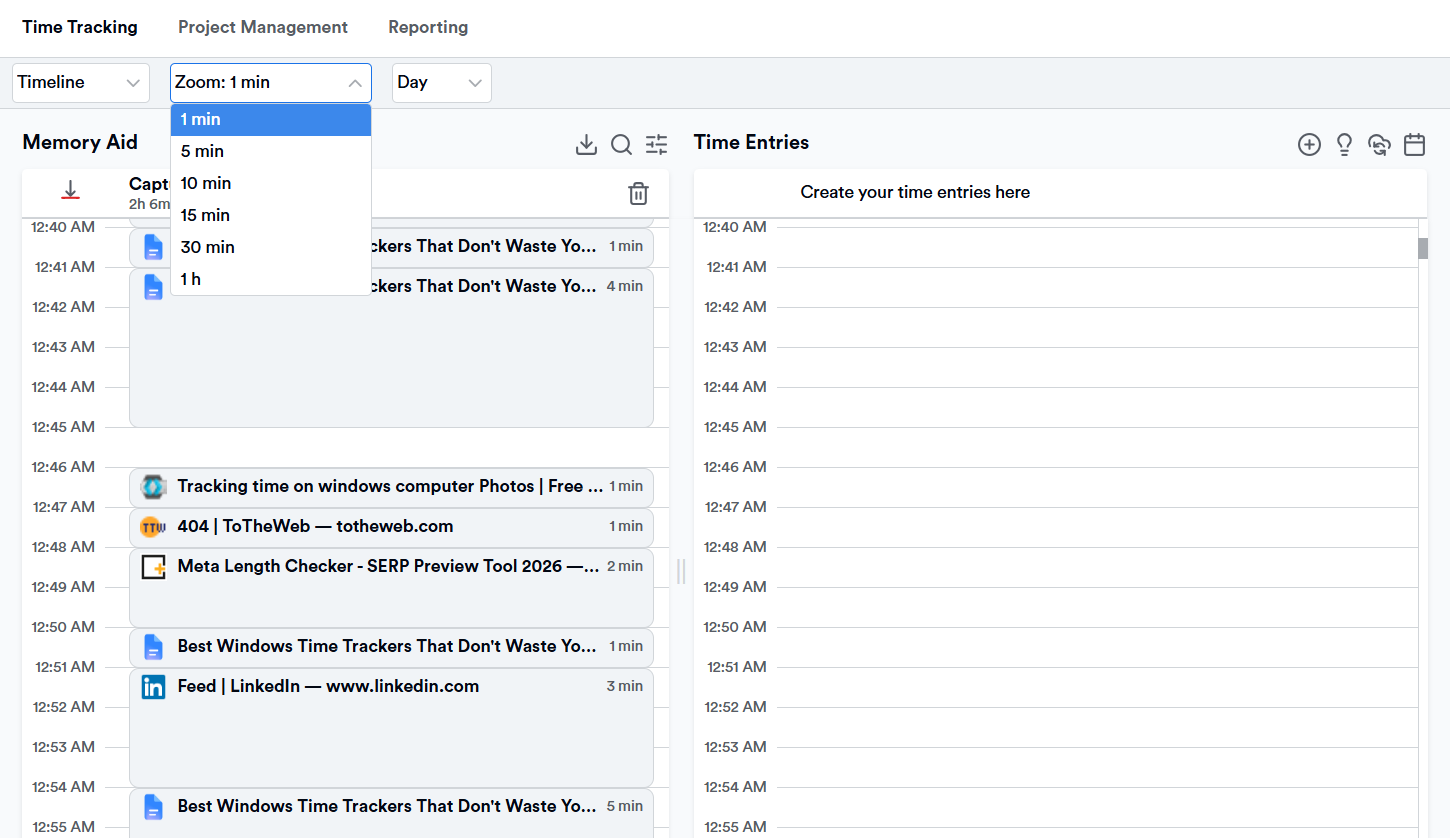
You don’t even have to start the app; it starts by itself. It’s simply there, running, like some kind of a ghost that happens to have a photographic memory.
At the end of the day (or whenever you feel like it), you open Memtime, look at your timeline, and turn chunks of activity into time entries with a couple of clicks. You can even set up rules so Memtime starts suggesting entries automatically based on patterns it’s noticed (no AI though, that’s not our thing)—you just review, approve, and move on.
Here’s what else Memtime brings to the table, considering the 8 criteria mentioned earlier:
- Memtime is about as close to install and forget as time tracking gets. There’s no timer to manage, and no categories to think about before you start working.
- Manual effort is minimal, by design. The only manual step is converting your captured activity into time entries (if you decide to do it yourself), which takes minutes, not hours.
- Automation is Memtime’s whole reason for existing. Full activity capture, down to the minute, and rule-based autosuggestions for entries.
- Because Memtime captures your actual activity, the resulting time logs tend to be far more precise than anything timer-based. (In my opinion, as a Memtime user, the app’s timeline 100% reflects reality).
- Memtime is built as a native desktop app for Windows (also available on Mac and Linux), so it’s not a browser tab you can accidentally close and lose your data.
- Memtime 2-way syncs with 100+ project management, billing, and accounting tools. This means that your projects flow in Memtime and your time entries can go back out.
- When it comes to privacy, Memtime keeps your raw activity data, like file names, URLs, and app usage, local on your machine. Nothing gets synced to a server/cloud (there is no cloud!) except the time entries you deliberately create and export to another tool. Your manager does not get a live feed of your browser history.
- Memtime runs on 3 paid tiers, plus a custom option for bigger teams:
- Basic costs $12 per user per month (billed biannually). It covers full automatic tracking with Memtime’s own built in project tool, but no outside integrations.
- Connect costs $18 per user per month. It adds 2-way syncing with 100+ project management and billing tools.
- Premium costs $23 per user per month. It adds call system integrations and priority support.
- Enterprise is custom priced, aimed at teams of 50 or more seats.
- There is a 14-day free trial with full features and no credit card required.
- If you’re just starting out on your own, Connect is the plan worth trying first. Basic looks appealing on price, but you’ll likely end up wanting your time entries to flow into whatever invoicing or project tool you already use, and that’s what you get with Connect. For teams, the same logic applies, just at scale: start with Connect per user, and only move to Premium once call tracking or priority support actually become a thing you desperately need.
Now the trade-offs. I mentioned we’re keeping it honest and real.
Memtime doesn’t have a free forever plan.
BUT it does pay for itself.
Hmm… don’t believe me? Let’s do this quick math.
- Say you bill out at $75 an hour for your work. Now, think about all the small stuff that doesn’t get logged thanks to a manual timer. Like, the 15 minutes on a client call, the quick edits you made between meetings, and the tasks that you wanted to add but forgot.
- Even a conservative estimate, just 20 minutes of unbilled work a day, adds up to a little over 7 hours a month. At $75 an hour, that’s over $500 in billable time that ends up missing.
- Compare that to Connect’s $21 a month. You’d only need to recover about 17 minutes of previously lost time, once, to cover the entire month’s subscription. Everything after that is pure money on the side.
So no, Memtime’s not free. But it takes a few recovered minutes a month to make the subscription pay for itself, and after that, it’s just found money. And you have to admit that’s pretty cool.
Now, at this point, I won’t encourage you to sign up for a free trial. You still have a long list of tools to go through and choose the one that feels the best.
#2 RescueTime — Best for automatic productivity tracking
RescueTime has been in the time tracking game for a long time, and it shows.
These days it comes as a 2-in-1. With this tool, you get Focus, which is about understanding your habits (how much time you spend in productive apps vs. distracting ones, when your focus dips, and where your day actually goes), and Timesheets, which layers client, project, and task tracking on top so you can turn that same activity into something billable. You can run Focus on its own, or bundle in Timesheets if getting paid is part of the plan.
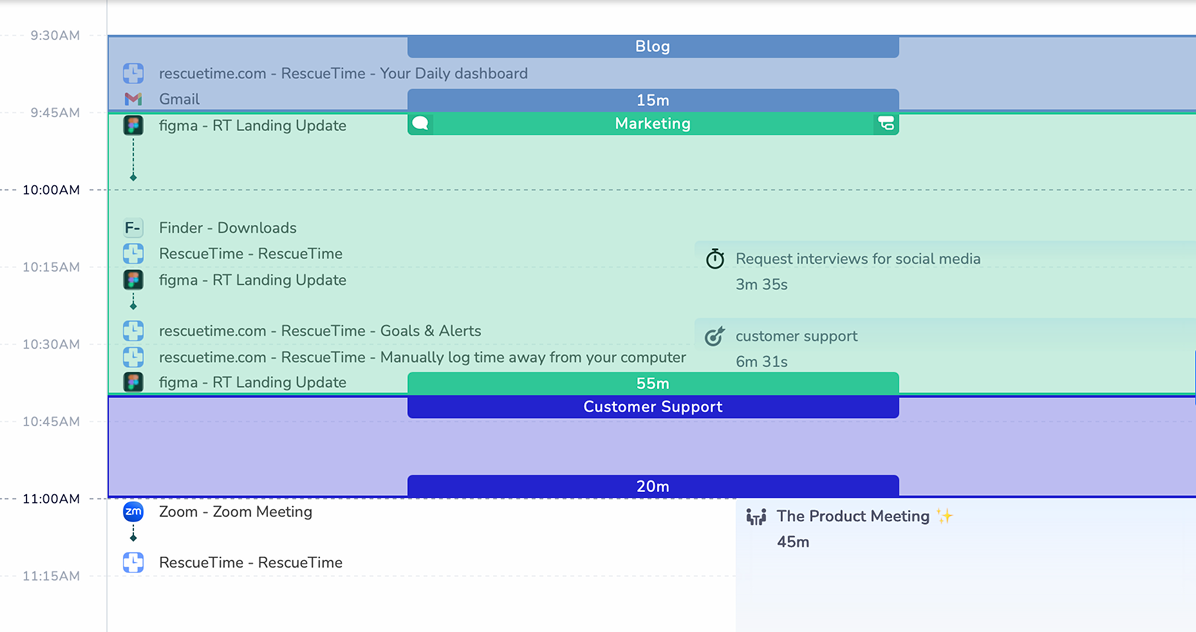
Either way, the app runs in the background on Windows and automatically logs the apps and websites you use, then categorizes them (you can adjust the categories) into productive, distracting, or neutral buckets. Based on your activity, you get a daily productivity score, reports, and alerts if you’ve been doomscrolling longer than you should. Add Timesheets to the mix, and that same activity data also gets organized into client and project time, ready for export.
The Focus side is also where RescueTime’s best-known feature is. I’m talking about FocusTime. You can trigger a focus session manually, on a schedule, or automatically whenever RescueTime detects you’re deep in a productive app, and it’ll block distracting sites and apps for a set period. You can also set daily targets, like keeping distracting time under an hour, and get notified in real time when you’re about to blow past them. Pretty cool if you ask me.
Here’s what else you can expect from RescueTime:
- You set up RescueTime once, and it just runs. Very little day-to-day interaction needed.
- Manual effort is low. Most of your work is occasionally recategorizing an app or website, not necessarily logging time yourself.
- Automation is strong if you want to know what you did. On its own, Focus is a bit weaker at turning that into structured, client-ready time entries, but that’s what Timesheets is for.
- The accuracy is solid for app and website-level tracking.
- It works well as a native Windows background app.
- Even with Timesheets added, it offers fewer project management integrations than tools built specifically for billing; RescueTime is still more of a standalone insight tool at heart.
- Activity data is sent to RescueTime’s servers to generate your reports and scores, which is worth knowing if you’re sensitive about where your habits live.
- Pricing runs on four paid tiers, aimed at individual users and teams. There are Solo Focus (starts at $7 per month billed annually) Solo+, which bundles in Timesheets, Team Focus, and Team+. All plans come with a 14-day free trial.
If your goal is to understand where your focus goes throughout the day, Focus alone is great. If billing clients accurately is the goal, add Timesheets to the mix, though even then, dedicated billing tools will likely do that specific job better.
#3 ActivityWatch — Best for open-source, full private tracking
If the idea of any company touching your activity data makes your skin crawl, ActivityWatch is the tool for you. It’s a free, open-source, automatic time tracker that runs on your own Windows machine. No cloud, no account required, no server storing your browsing history.
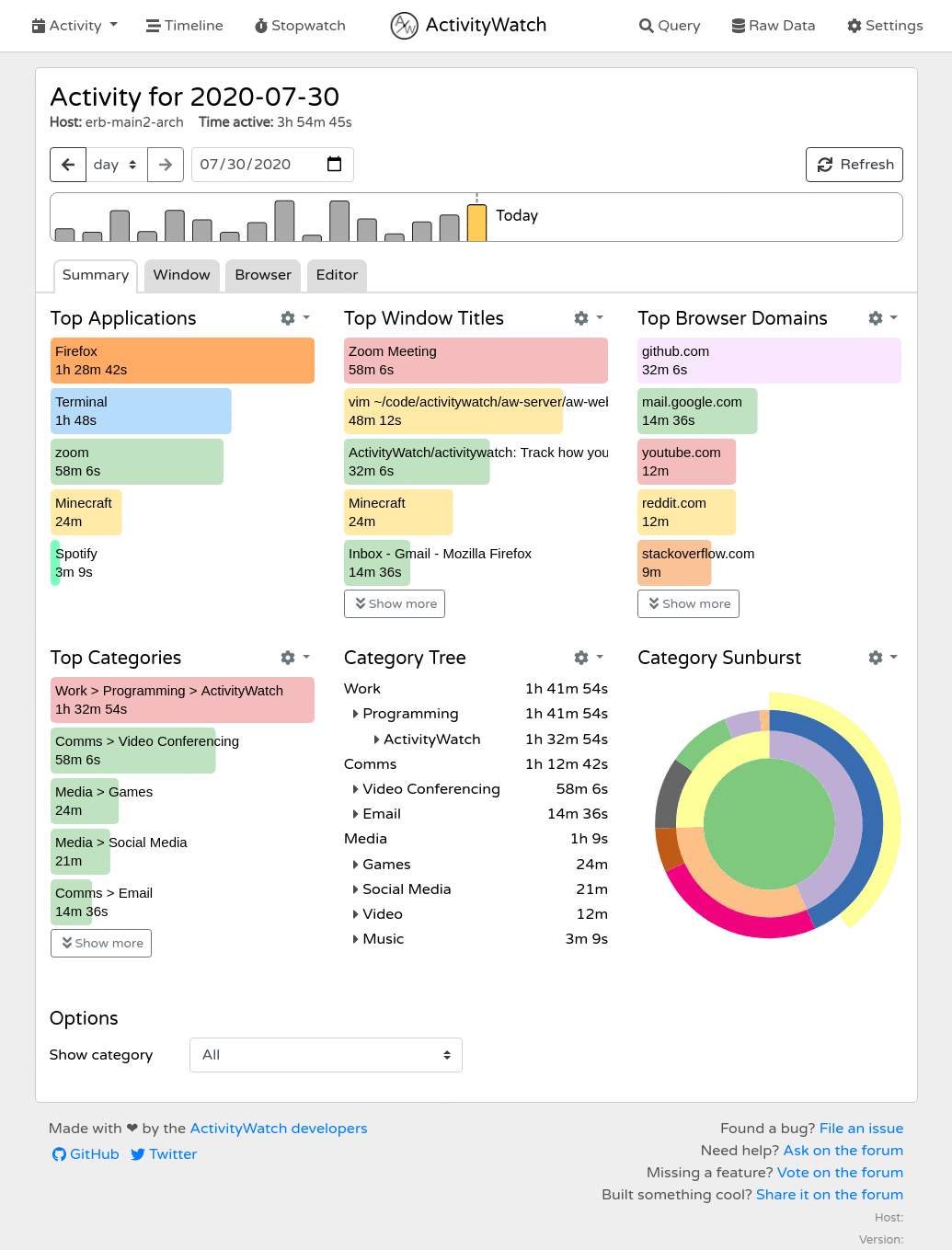
It quietly watches which apps and windows you have active and builds a local timeline. The approach is similar to Memtime’s but is more DIY, self-hosted. Because it’s open source, you can inspect what it’s doing, and there’s an active community building plugins and extensions on top of it.
Here’s what to expect from ActivityWatch:
- It’s pretty straightforward to install, though the interface is more functional than polished. There’s a bit of a learning curve if you want to customize it deeply.
- Manual effort is low for basic tracking. Turning raw activity into organized project time takes a bit of manual categorization.
- It’s true automatic activity capture, running locally.
- The accuracy is good at the window/app level but less refined for detailed project-level breakdowns.
- It runs natively on Windows, Mac, and Linux.
- Integrations are limited compared to commercial tools; ActivityWatch is more of a self-contained system.
- Privacy is as good as it gets. Everything stays local unless you explicitly set up syncing yourself.
- The tool is free. Fully, actually free, because it’s open source.
All in all, if you’re a privacy-obsessed overthinker, this app is for. Just know if things go south, there’s support to contact, but you can reach out to community members to help you fix the issue.
#4 Rize — Best for automatic AI focus tracking
Rize is similar to RescueTime in the sense that it’s about self-awareness and personal productivity. But it’s also like Memtime, as it automatically tracks your app and website usage, offering project and client categorization.
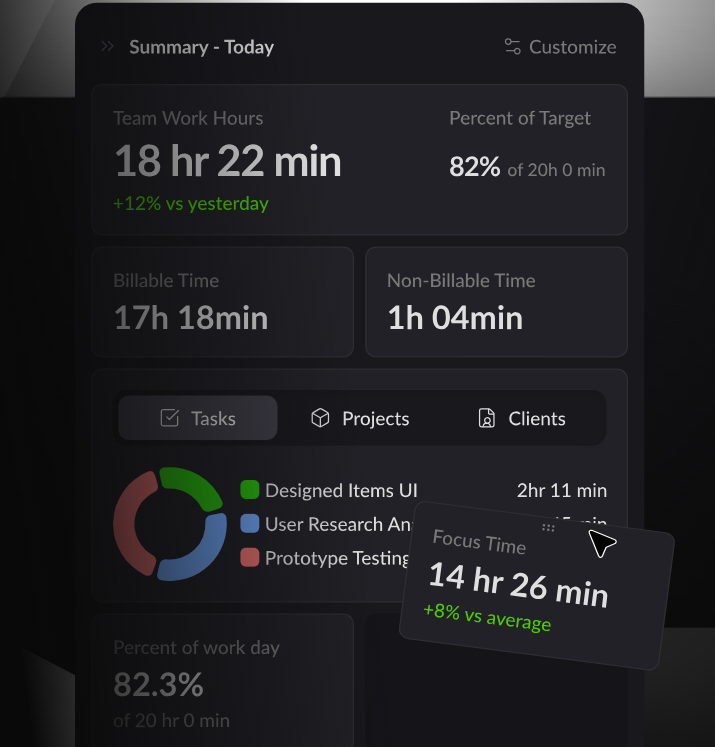
What it does differently is AI. Rize adds a layer of AI-generated insight on top, nudging you about focus sessions, break timing, and patterns. It also includes automatic session detection, so it can tell when you’ve settled into a deep focus block vs. when you’re context switching and getting very little done (hey, we’ve all been there).
Here’s what you get with Rize:
- Rize has a clean, modern interface that’s pleasant to look at.
- Manual effort is low for tracking itself, but you’ll spend a bit of time initially telling it which apps and categories matter to you.
- Automation is strong for both billing, profitability, and personal productivity tracking; automatic session and focus detection is a nice touch.
- Accuracy is good for app-level insight; it’s built for personal habit tracking and client billing.
- It’s a native Windows app.
- Rize’s integrations have come a long way; there are native connections to Asana, ClickUp, Linear, Google Calendar, Outlook, Slack, and QuickBooks, plus a Zapier connection that opens things up to thousands more apps.
- Activity data is processed to generate the AI coaching features, so some data leaves your machine. It’s worth checking Rize’s current policy if that matters to you.
- Rize offers individual and team plans. There are 4 individual plans, starting at $9.99 per month, and 2 team plans. There’s a 7-day free trial with full feature access, no credit card required.
If you want an AI-leaning tool that helps you understand how you spend your time, improve focus habits, and increasingly, bill for that time too, Rize is a good pick.
#5 Toggl Track — Best for simple time tracking
Toggl Track is the tool most people have already tried at some point, and there’s a reason for that. It’s clean, fast, and does what it says on the label: you press start, then stop, and you’re done.
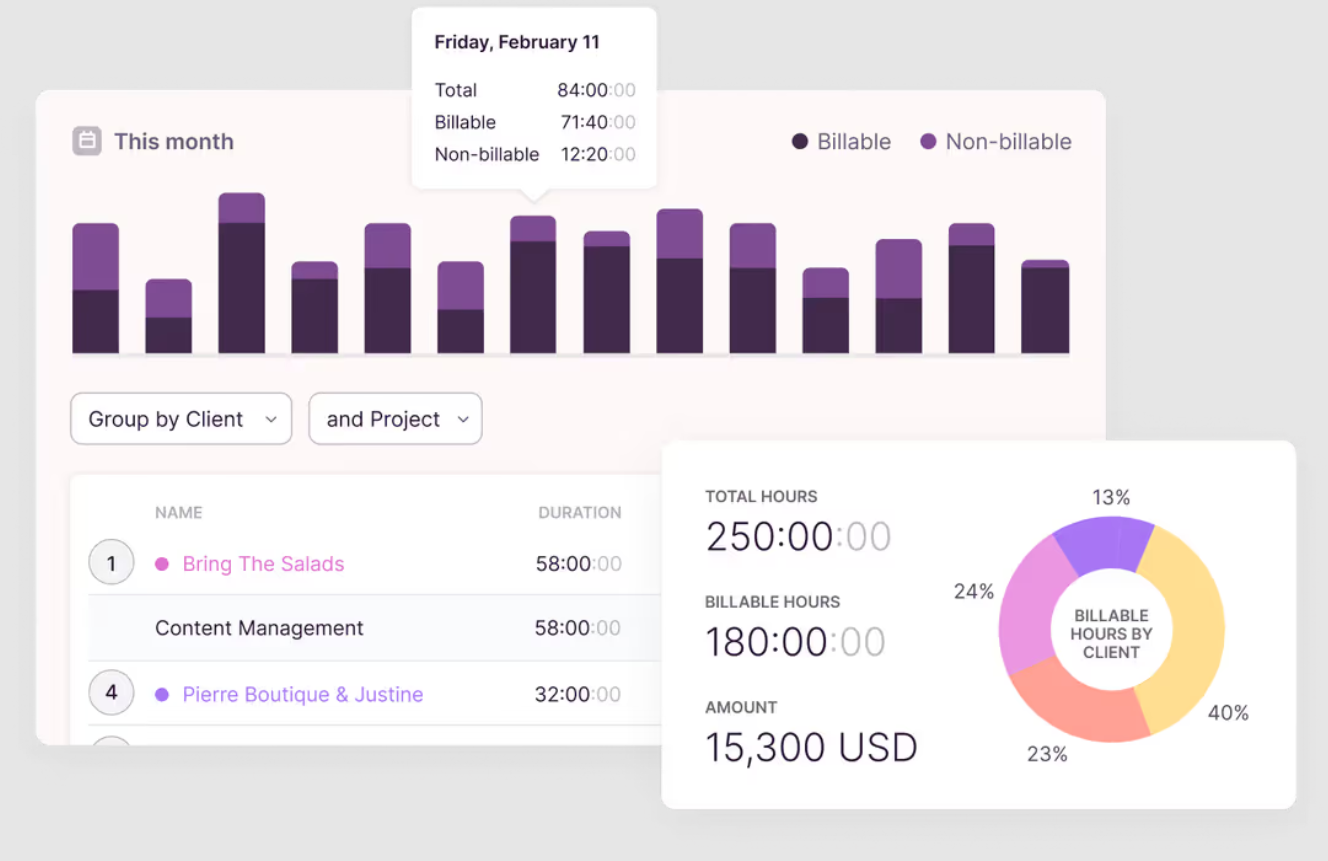
You get a big, obvious timer button, the ability to tag entries with projects and clients, a calendar view where you can drag around time blocks after the fact, and solid reporting. Toggl also has idle detection and automatic time tracking.
Toggl’s desktop app includes a background auto tracker that records the apps and websites you use, so if you do forget to hit start, you’ve got a rough activity log to fall back on instead. It’s not full automatic tracking in the Memtime sense, since you still need to manually turn that captured activity into actual time entries, but it’s a good feature for sure. When you add to it a feature like reminders that nudge you if you’ve gone quiet for too long, you get why Toggl has been popular for so long.
Here’s what you can expect of the app:
- It’s one of the easiest tools to pick up. The interface is intuitive.
- Manual effort is there. You still need to remember to start and stop the timer, but you can also rely on the background auto tracker.
- Some background tracking is available through its desktop app, plus idle detection and reminders.
- The tool is accurate if you remember to use it correctly. Accuracy drops fast the moment you forget to start a timer.
- It has a native Windows desktop app, plus browser extensions and mobile apps.
- Toggl integrates with a bunch of project management and invoicing tools.
- You get standard cloud-based storage of your tracked time; it’s not a local-first tool.
- Three paid plans are available and one free. The free plan offers time tracking on desktop and web, 100+ integrations via a browser extension, Google and Outlook calendar integration, and productivity reports. If you want to try the paid ones, there’s a generous 30-day free trial.
Toggl is a good tool for people who are disciplined about starting timers. If you’re not one of those people, be aware of the friction point we talked about earlier in the article.
#6 Clockify — Best free time tracking option
If you’re on budget, Clockify is your go-to tool. Its free plan is super generous: you get unlimited users, unlimited projects, and unlimited time tracking. And there’s no fine print.
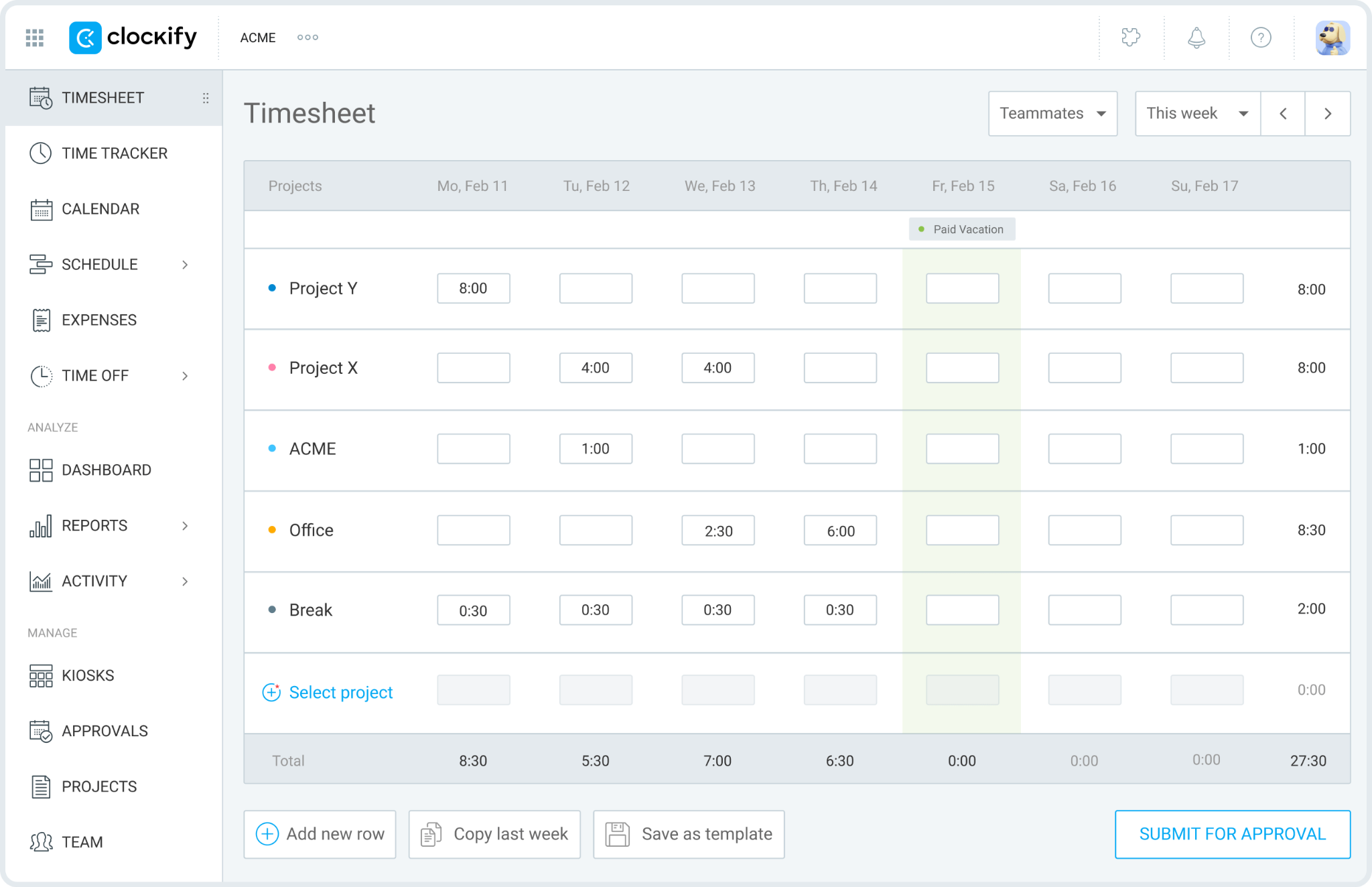
Clockify covers the basics well, like timers, manual entry, timesheets, project and client organization, billable/non-billable tagging, and good reporting. It also has a calendar view for dragging time blocks around and, notably, an auto tracker feature that runs in the background and records app and site usage. You can then review your activity and convert it into entries. Kinda like Toggl.
Here’s what you get with Clockify:
- Clockify is super straightforward and beginner-friendly. It has a slightly busier interface than Toggl once you dive into team features.
- Manual effort is moderate. The app is primarily timer-based, though the auto tracker helps catch what you’d otherwise miss.
- Automation is partial. Background activity capture exists, but converting it into usable time entries still requires manual review.
- Accuracy is decent, especially when combined with the auto tracker as a backup.
- There’s a native Windows desktop app, browser extension, and mobile apps.
- Clockify offers broad integration support across PM and accounting tools.
- Cloud-based storage with standard practice. Nothing alarming per se, but also not local-first.
- Clockify offers 5 plans, one of them is free forever. Paid plans start at $3.99 per seat, billed annually. Unless you specifically need GPS tracking or profitability dashboards, the Standard plan hits the sweet spot: it’s the first tier where you’re paying for something you’ll most likely use (invoicing, time off, approvals) rather than just admin conveniences.
If price is your main worry, Clockify is a good starting point. It’s a good tracker that won’t let you down.
#7 TMetric — Best for manual tracking with good integrations
TMetric doesn’t get talked about as much as Toggl or Clockify, although it does a lot of things right. And by that I mean if your workflow is inside tools like Jira, Trello, or Asana, TMetric has your back. It’s a timer-based tracker, but its integration depth is where it shines—you can start and stop timers directly from within the tools you’re already using, instead of switching over to a separate app.
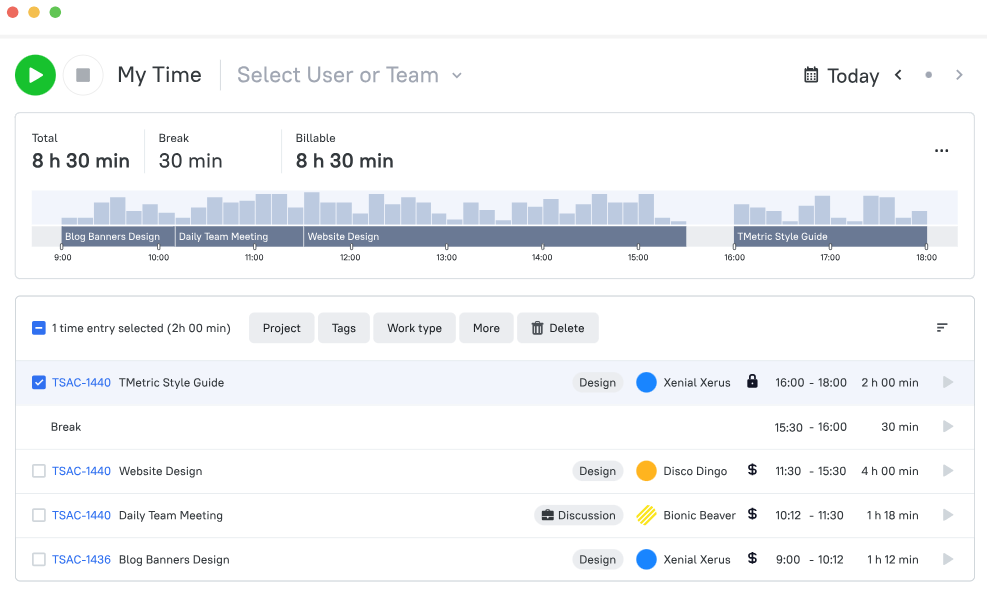
It also covers billing rates, invoicing, budgeting, and reporting, making it a good pick for freelancers and small teams who want something more than a timer and less than a major platform.
Here are some of TMetric’s features:
- It has a clean, no-nonsense interface that doesn’t take long to get a grip of.
- The app is timer-based, so you need to remember to start the timer. Pretty high manual effort.
- When it comes to automation, TMetric offers some idle detection and reminders, but this is fundamentally a manual tracking tool.
- The app is reliable when used consistently; it has the same limitations as any timer-based app when you forget to engage it.
- TMetric has a native Windows app, browser extension, and mobile apps.
- Integrations are TMetric’s strongest card. It provides deep, direct integration with popular PM tools so you don’t have to leave your workflow to track time.
- You get standard cloud storage of tracked data.
- TMetric offers 4 plans, 1 of them is free. The Professional plan is the tier where you're paying for something you’ll actually use as an individual or small team (invoicing, budgets, billable rates), while Business is really an upgrade for managing headcount, not your own hours. There’s also a 14-day fully featured free trial with the option to extend it for 7 days.
If your day revolves around a project management tool and you just want time tracking bolted directly onto it, try TMetric.
#8 Harvest — Best for invoicing and client billing
Harvest wraps up this list because it’s not a regular time tracker. It’s for people who want to track time but also get paid. It’s a straightforward timer-and-timesheet tool, but its strength is what happens after you track: turning tracked hours into invoices, tied to project budgets and expense tracking.
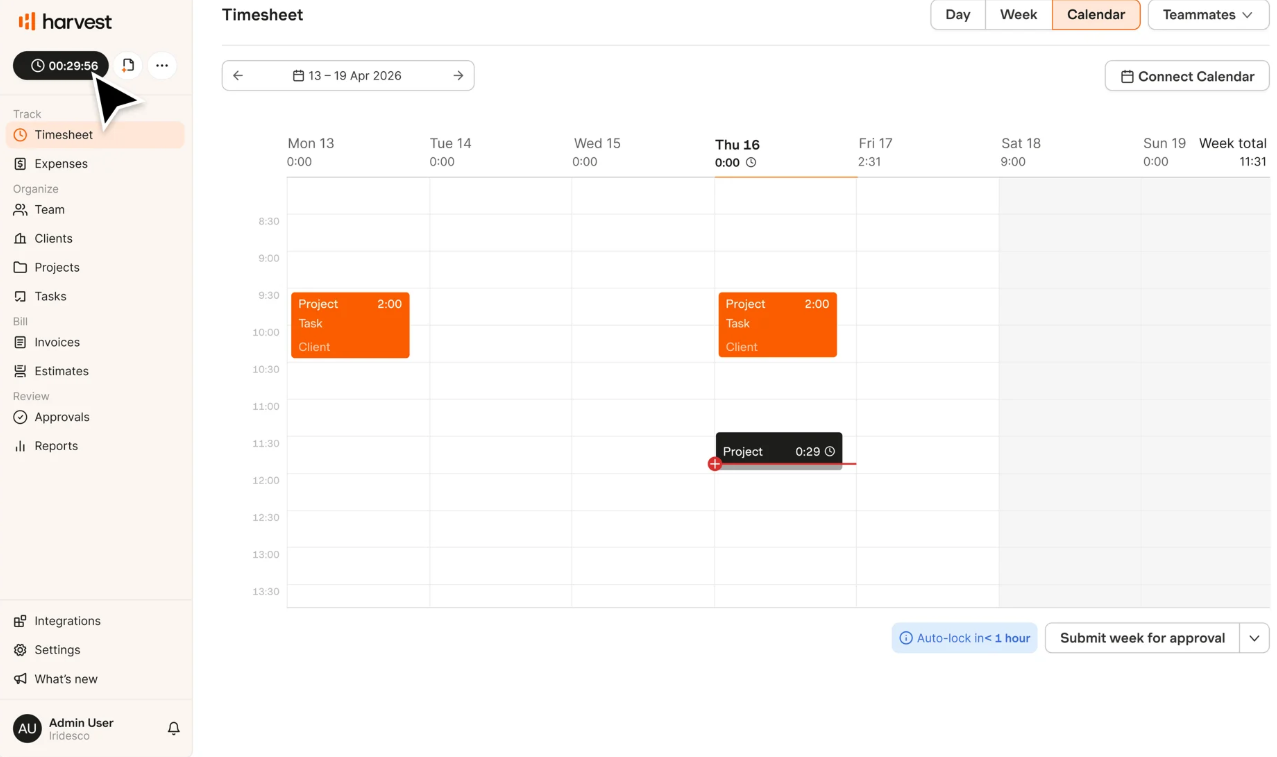
With Harvest, you can track time via a timer or manual entry, assign it to projects and clients, mark it billable, and then generate an invoice. All this within one app.
Here’s what you get with Harvest:
- It’s clean and approachable, even with billing built in.
- Harvest comes with a timer and lets you make a manual time entry, so there’s a lot of manual effort required. The same forgetfulness risk applies as with Toggl, Clockify, and TMetric.
- It’s automated to some extent, meaning you get some reminders and idle detection, but this is not an automatic-capture tool. No passive tracking.
- The tool becomes reliable when timers are used consistently; the invoicing side is where it really earns its keep.
- Harvest has a native Windows desktop app, browser, and mobile access.
- You get strong accounting and payment integrations (handy if you’re already sending invoices and chasing payments).
- You get standard cloud-based data storage.
- Harvest offers 4 plans, one of them is free (the one built for individual freelancers). The decision really comes down to two questions: do you need to bill more than 2 projects (if yes, skip Free), and do you need profitability reporting or compliance/audit features (if no, skip Premium)? For most people, that lands on Teams. Also, there’s a 30-day free trial.
If billing is what you dread at the end of each month, not just knowing where your hours went, Harvest might save you. It handles that final billing step better than most tools on this list.
Wrapping it up
If there’s one thing you can take from this lengthy piece, let it be this: there’s no such thing as the best Windows time tracker, but there is the best Windows time tracker for you. By that I mean you need to find the one that fits how you actually work, so you won’t abandon it after 3 weeks.
So, here’s a quick cheat sheet, if you’re still deciding:
- Want zero manual effort and a private, local record of your day? Go with Memtime.
- Want free, forever, no strings? Clockify.
- Care about personal focus habits and client billing? RescueTime or Rize.
- Want something open-source? ActivityWatch.
- Want something manual? TMetric.
- Billing clients is what you’re after? Harvest.
Whatever you pick, give it a spin before you fully commit. Try it for at least 2 weeks. Time tracking tools reveal their true colors after the novelty wears off.
Now go track something. Or better yet, let something track it for you (cough, Memtime). 😉
FAQs
Is time tracking software actually worth it, or is it just extra admin work?
It’s worth it if the tool fits how you actually work, and it becomes extra admin work the second it doesn’t. Manual timers only pay off if you’re disciplined about starting and stopping them, which, let’s be honest, most of us aren’t. Automatic tools like Memtime remove that decision entirely, so the question basically answers itself. You get the data without doing the work.
What’s the difference between automatic and manual time tracking?
Manual time tracking means you start a timer, tag it, and stop it yourself every time you switch tasks. Automatic time tracking, like what Memtime does, runs quietly in the background and logs your activity without you touching a thing. The difference is also in the consistency: manual tools ask more of you, so they’re more likely to get abandoned once you get busy.
Can time tracking software work offline on Windows?
Yes, sure. Several tools on this list work offline, including Memtime, which stores your entire activity timeline locally on your device, meaning there’s no real-time cloud syncing. ActivityWatch takes the same local-first approach. If offline access and data privacy matter to you, these two tools are your strongest bets.
How accurate is automatic time tracking compared to manually logging hours?
Automatic tracking is far more accurate, simply because it doesn’t rely on your memory. Manual logging is only as good as your ability to remember what you did hours ago, which isn’t great. Tools like Memtime capture your actual activity as it happens, so nothing gets rounded, guessed, or forgotten.
Does running a background time tracker slow down my computer?
No, not at all, if the tool is built properly. Native Windows apps like Memtime, RescueTime, and ActivityWatch are designed to run quietly in the background without messing up your system resources. If you ever notice a real slowdown, it’s usually a sign the tool is doing more (like taking screenshots) than simple activity logging requires.
Is it normal to forget to track time, even with a good system in place?
Yes, completely normal, and even expected. Even people who genuinely want to track their time forget constantly, because remembering to log work isn’t the same skill as doing the work. That’s exactly why automatic tools exist. Memtime, for one, was built around this exact problem: it assumes you’ll forget, so it just tracks everything anyway.

Aleksandra Mladenovic
Aleksandra Mladenovic is a copywriter and content writer with six years of experience in B2B SaaS and e-commerce marketing. She's a startup enthusiast specializing in topics ranging from technology and gaming to business and finance. Outside of work, Aleksandra can be found walking barefoot in nature, baking muffins, or jotting down poems.