Best Apps for the Self-Employed to Save Time & Earn More

Being self-employed is a bit like running a circus. You’re the ringmaster, clown, object manipulator, light technician, costume designer, and on some days, even the animal that escapes.
In other words, you’re also your HR, invoicing department, and your own very disappointed manager when you scroll IG for 40 minutes.
And people don’t talk about it enough.
They usually talk about freedom, flexible hours, and working in your pajamas. Yet somehow they skip the part where flexible hours means you’re available 24/7, and the pajamas are the only constant part of your job.
As a freelancer myself, I know your weeks are hectic.
You chase a client for a reply, then chase them again about an invoice.
You schedule a call over 7 emails.
You lose a file, find it, and lose it again.
You forget the password to the one tool you need ASAP.
And so on and so forth.
You do so much work around the work, and none of it gets you paid. It’s about time you change that.
So, let’s talk about how you can do so. Let’s find software that helps you get out of almost any solopreneur trap, making room to do real work and stay productive.
We’ll go through 12 apps and tools built to take the boring, repetitive stuff off your plate. We’ll cover:
And since you’re on the Memtime blog, we’ll start with time tracking. Everything else works better once you know where your hours actually go, anyway.
But first, let me explain how I judged these apps. I used just 2 parameters, and they decided everything.
Key Takeaways:
- The 12 apps were scored out of 5 on 2 criteria: time saved and earning more.
- Automatic time tracking comes first because people forget manual timers. Memtime records apps, documents, and websites in the background, so you can bill work you would otherwise miss.
- QuickBooks Solopreneur handles bookkeeping and invoicing, while Monarch Money tracks personal budgets, helping you plan around lean months when your income is irregular.
- Calendly replaces back-and-forth scheduling emails with a booking link, and Wix lets you build a simple website that presents your services to potential clients.
- Notion keeps notes and processes in one place, Slack speeds up client chats, Otter turns meetings into transcripts, and WeTransfer sends files too large for email.
- 1Password protects client logins with a master password plus a Secret Key.
- You don’t need all 12 apps: start with time tracking, fix your money, and add Grammarly, IFTTT, or other tools only when a repeated task starts to annoy you.

How I picked these apps (the methodology)
Okay, let me quickly explain how I judged these tools. There are only 2 parameters, because freelancers (you and me both) don’t have the time for more.
Parameter 1: Does it save you time? I looked at how many repetitive, soul-draining tasks the app takes off your shoulders. Does it replace an actual chore, or add another tab to your already crowded browser? Also, if setting it up takes longer than the problem it solves, it loses points.
Parameter 2: Does it help you earn more? This one’s trickier, because no app will magically drop money in your account (if you find one, feel free to email me). But a tool can help you earn more in sneakier ways, like stopping you from losing billable hours, making you look more professional so clients say “yes” faster, helping you get paid sooner, or freeing up space in your week for one more paying client. You get where I’m going with this.
Anyway, each app gets a score out of 5 for both. Those scores are my honest, slightly subjective opinion, not science. I also checked every tool’s current plans and limits, because software changes faster than a freelancer’s mood. Prices tend to go up, though, so always check the official pricing page before you whip out your card.
Oh, and every tool also gets one honest downside. No app is perfect—if a review tells you otherwise, someone is getting paid. So, you’ll hear what each one does well, and also the one thing that might annoy you, so you can decide before you commit.
Enough with the rambling. Let’s get to the actual tools.
#1 Memtime: for time (and money) you didn’t know you were losing
Automatic time tracking is the first thing on our list for a reason, and not only because this is the Memtime blog.
The reason is that manual time tracking simply doesn’t work: you start a timer, forget to stop it, and now you’re 3 hours late. That’s why you end the week staring at your timesheet trying to figure out what you were working on.
At Memtime, we call this what it is: human nature. Because it’s exactly that: our nature and our brains being busy doing actual jobs. That’s why automatic time tracking is the way to go; instead of you remembering your work, the app does it for you.
Speaking of automatic tracking, meet Memtime. 🤝
It’s our desktop app for Windows, macOS, and Linux. You install it, and it runs quietly in the background, recording which apps, docs, and websites you used and for how long, then lays your whole day out as a timeline. It catches even those 2-minute tasks, plus meetings and calls.
You turn on your computer, Memtime turns on. You shut it down, Memtime shuts down. Easy peasy lemon squeezy!
At the end of the day (or week, or whenever you want), you look at the timeline and assign activities to the right projects and clients.
Here are a few Memtime features you need to know about:
- Offline and private. Your activity data stays on your own device; it’s never uploaded to the cloud, which also means no syncing between devices.
- No AI guessing. Memtime doesn’t try to be clever and decide for you what you did; it shows you exactly what was recorded, and you decide how to categorize it (or let Memtime do it for you).
- Integrations. It connects to over 100 project management and billing tools, so tracked time can flow into the software you already use. If you don’t use any, you can opt for Memtime Projects, a project management tool we built. It works in your browser, so you can set up clients, projects, and tasks (from scratch or from templates) on any device, even your phone. Every time entry you assign to a project syncs across devices, and if you work with a team, you can invite people, assign roles like Manager or User, and view reports on billable hours.
- Calendar sync. Memtime pulls your meetings into the timeline and shows planned vs. actual duration side by side. So when a 30-min call runs for 1.5h, you have proof and a time entry ready to bill.
- Call tracking. Time spent on certain VoIP calls and iPhone calls can land on your timeline as well.
By now, I hope it’s clear how Memtime saves you time. If not, here’s the simplest way I can put it: it saves the time you’d spend on tracking time, and the time you’d spend on the admin that comes after.
- The time you’d spend on tracking time. Memtime takes that whole job off your plate; you just work while it records which apps, documents, and websites you used and for how long.
- The time you’d spend on admin. At the end of the day (or the week), you open your timeline and assign what you did to the right client or project. Your meetings show up there as well, so you don’t have to dig through your calendar. And if you use one of the 100+ tools it connects to, your time entries can go straight to your billing or project software, so there’s no copy-pasting.
Which leads me to the second part: how it helps you earn more.
Well, it:
- Catches the work you’d forget to bill. Since Memtime records your whole day, all those little tasks show up in your timeline. You still choose what to assign to a client and what to leave out, but at least you’re choosing from the full picture. Even a few forgotten tasks a week add up to real money by the end of the month.
- Shows how long projects really take. Your timeline shows you the reality of your work. So, next time you quote a price, you’ll be working from real data, not wishful thinking, which means fewer projects that quietly pay you less than you thought. It also helps you spot which clients or projects are worth your time and which ones are draining your time and energy.
- Gives you a receipt. When a client asks, “Why did this take so long?”, you’ll have a timeline showing where the time went. With calendar sync, it also shows the real length of meetings, so a call planned for 30 minutes that actually took 90 doesn’t turn into free work.
Put it all together, and you get more accurate invoices and better quotes. What more could you ask for? 🙂
#2 QuickBooks Solopreneur: for money admin you’d avoid
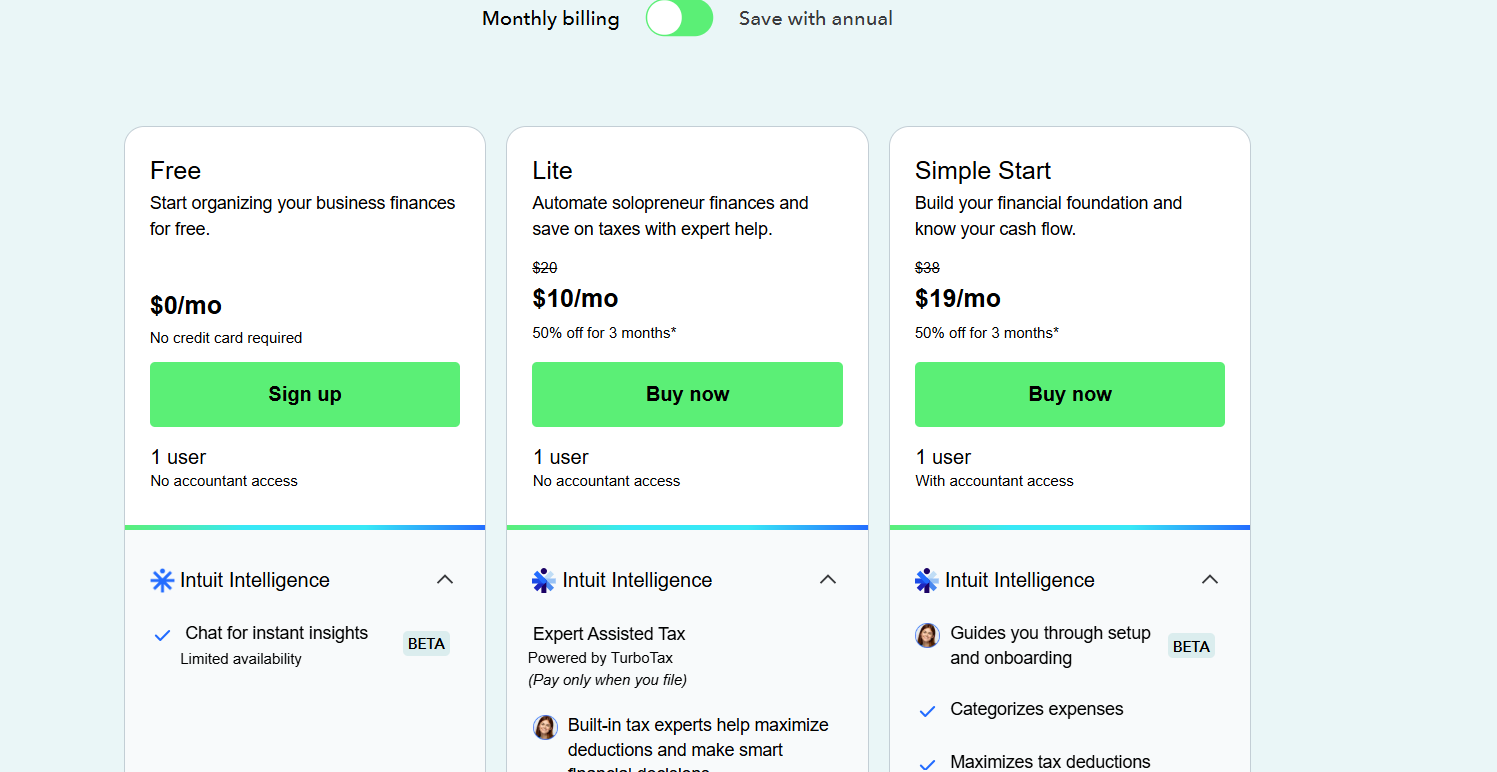
Remember QuickBooks Self-Employed? Yeah, you can’t sign up for it anymore. Intuit stopped signing up new customers in 2024 and replaced it with QuickBooks Solopreneur, a similar product made for one-person businesses. Some old subscribers were allowed to stay, though.
So, same family, new name, a few feature changes.
QuickBooks Solopreneur is an app that lets you connect your bank account and sort your income and expenses into categories. It also handles invoicing and gives you a cash flow picture. You can also snap photos of receipts, though how many you can capture depends on your plan.
How does it save you time?
Well, bookkeeping is the chore everyone postpones until tax season. Doing it little by little, with the software categorizing most of the stuff for you, is far less painful than a wild weekend with a shoebox of receipts and a bottle of bubbly.
And it also helps you earn more. In 2 ways, specifically.
First, you see what you actually make vs. what you think you make. Those numbers are rarely the same. Second, sending invoices from the same place you track your finances means fewer chances of forgetting to bill clients.
#3 Calendly: for people to stop asking you “does Tuesday work?”
You know that email chain.
“How about Tuesday?”
“Can’t, how about Wednesday?”
“Erm, Wednesday morning or afternoon?”
A dozen emails later, you’ve scheduled a 20-minute call. Calendly ends this circus.
You connect your calendar to Calendly, set the times you’re available, and share a link. Your client picks a slot, and it shows up in both calendars. It also plays nicely with Zoom, Google Meet, and Microsoft Teams, so the video link gets created for you, too.
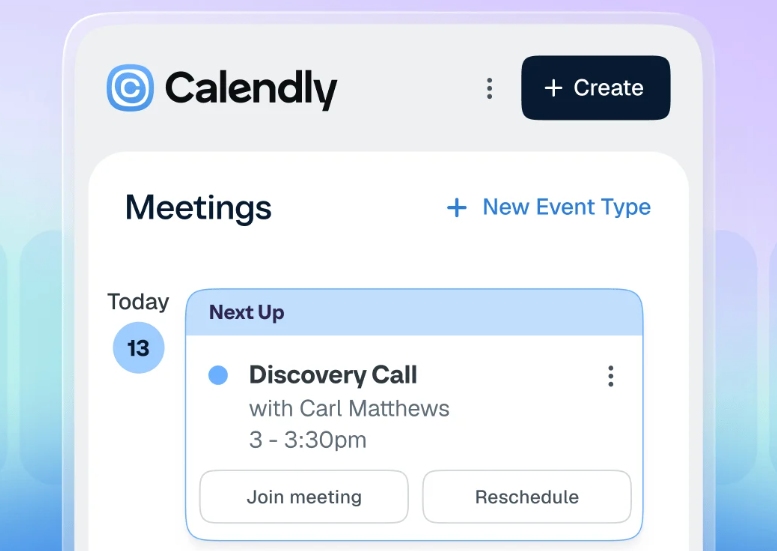
One of the best things is that Calendly has a free plan and it’s truly usable: unlimited meetings, one connected calendar, and a booking page. The catch is that you get only one active event type. So you can offer, say, a 30-minute intro call, but not that AND a 1-hour strategy session at the same time. Paid plans start at $18 per seat/month on annual billing (a bit more when billed monthly) and unlock unlimited event types and multiple calendars. IMO, if you only have a couple of calls a month, the free plan might be all you need.
So, how does it help you earn more?
Well, speed closes deals. When a potential client can book a call in 5 seconds instead of waiting for you to reply, they’re more likely to actually do it. It also makes you look organized, which is a great trick when you’re working in pajama pants.
#4 Wix: for a website you can build in your sleep
This app was a bit tricky to pick. I was going back and forth with Wix and Squarespace, and I went with the more popular one. By W3Techs’s numbers as of November 2026, Wix runs around 4.2% of all websites vs. 2.4% for Squarespace.
That said, both are solid. Squarespace is often praised for polished design, and Wix for flexibility, but popularity won this round.
Now, I digress.
Wix is a drag-and-drop website builder. You pick a template (there are hundreds available), swap in your words and photos, and publish. No coding, no developers involved.

How does it help you earn more?
Well, a freelancer without a website is a bit like a restaurant without a sign: maybe the food is excellent, but good luck finding the door. A simple site with your services, a few examples of your work and a contact form (even a Calendly form) does a lot of selling when you’re busy.
Wix also has an app market with things like booking tools, which is handy if you sell sessions or consultations.
And it can save you time, as well.
You don’t need to hire someone to change a typo; updates take minutes. Wix’s AI builder can also generate a first draft of a site for you, which gets you past the blank-page stage. You’ll still want to rewrite the text yourself, of course.
#5 Notion: for all your brain dumps, notes, tasks & projects
Notion is like that friend who is incredibly organized and also somehow makes you feel bad. And I mean this in the best way possible.
It’s a workspace where notes, documents, task lists, databases, and wikis all live together. You can build a client tracker, a content calendar, a project board, a template for your proposals, a place for your processes. Or you can just write to-do lists in it and call it a day.
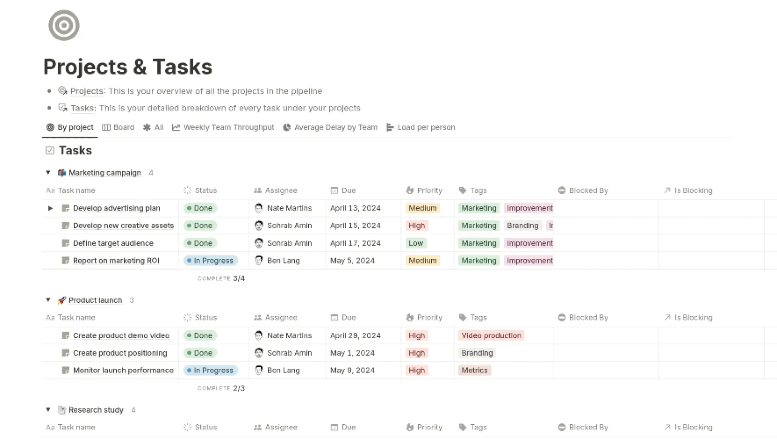
And that’s why it saves you time.
Having everything living in one place is *chef’s kiss*. Instead of hunting through 3 notebooks, 5 Google Docs, and a sticky note stuck to your monitor, you have one searchable home. And templates help, too. If you send the same type of proposal or onboarding document every time, you build it once and duplicate it forever.
Interestingly enough, it helps you earn more.
Processes are underrated. When you have a clear system for onboarding clients, delivering projects, and following up, you work faster and make fewer mistakes. And fewer mistakes mean fewer awkward client convos.
#6 Slack: for chats with clients
Slack is the app that promised to kill email and instead gave us a second inbox. It may sound like a trap, but for us freelancers, it’s a lifesaver.
It organizes conversations into channels, so you have one for each project or client. You can send files, share quick updates, start short audio chats (huddles), and connect it to other tools.

So, I think it’s pretty obvious how it saves time: fast, informal questions get fast, informal answers. Like, “Is this version final?” followed by a clear and short “Yes.”
Boom! Done in 10 seconds instead of a 3-email thread with official greetings and sign-offs.
When it comes to actually helping you earn more, I’d say that close communication keeps clients happy, and happy clients come back. It’s also a good way to stay visible in a team you want to keep working with. As they say, out of sight, out of the next project.
My tip: Don’t use Slack as your filing cabinet. Important decisions, files, and agreements should stay somewhere permanent, like Notion or your own drive.
#7 1Password: for the passwords you keep forgetting
How many logins does a freelancer have? Clients’ tools, invoicing software, social accounts, hosting, project boards… so, hundreds, probably? Don’t tell me your system for all these logins is “the same password with a different number at the end”. No. Just no.
So, let me introduce you to 1Password. It’s a password manager that stores your logins in an encrypted vault, generates strong passwords, and fills them in for you.

Given what it does, I think it’s pretty obvious how it saves you time. No more “forgot password” loops. No more resetting the same account every other month.
And it protects what you earn.
With 1Password, it’s not about earning more directly, but more about not losing what you’ve earned. A hacked email or client account can cost you money and sleep. Strong, unique passwords are basically cheap insurance.
Now, let’s talk briefly about what made me pick it.
1Password doesn’t rely only on your master password. When you sign up, it also generates a long random code called a Secret Key, which stays on your devices and is never stored on 1Password’s servers. So, even if someone stole a copy of the encrypted data, a weak or guessable master password alone wouldn’t be enough to crack it.
Now, am I saying that 1Password is untouchable? No, no company is. But I couldn’t find reports of its customers’ vaults being stolen, and the Secret Key design means a stolen copy of the data alone wouldn’t be enough to open it. That’s all I needed to hear, honestly.
#8 Otter: for the meetings you’d rather not remember
I picked Otter.ai as the AI meeting tool because it’s one of the best-known and does the basics very well.
It joins your Zoom, Microsoft Teams, or Google Meet calls, listens, and turns the conversation into a written transcript. It identifies speakers, creates a summary, and pulls out action items. You can also ask its AI chat questions about your meetings, like “what did the client say about the deadline?”

So, it’s a given that it saves you time.
Taking notes while talking is a special kind of torture. You either write and miss half the conversation, or listen and forget everything by lunch. With a transcript, you can relax and actually participate in the convo. Afterward, you just skim the summary.
And that’s why it can help you earn more. Better notes mean fewer misunderstandings, and fewer misunderstandings mean fewer unpaid work. When a client says “I never asked for that”, you can check them with what they really said. Politely and with a smile, of course.
#9 WeTransfer: for files too big for email
You’ve finished the project, and the files are huge, so email can’t handle them. Enter WeTransfer, the classic solution for sending large files without making your client learn a new tool.
You upload your files, enter an email or grab a link, and send. The recipient clicks and downloads. That’s it.
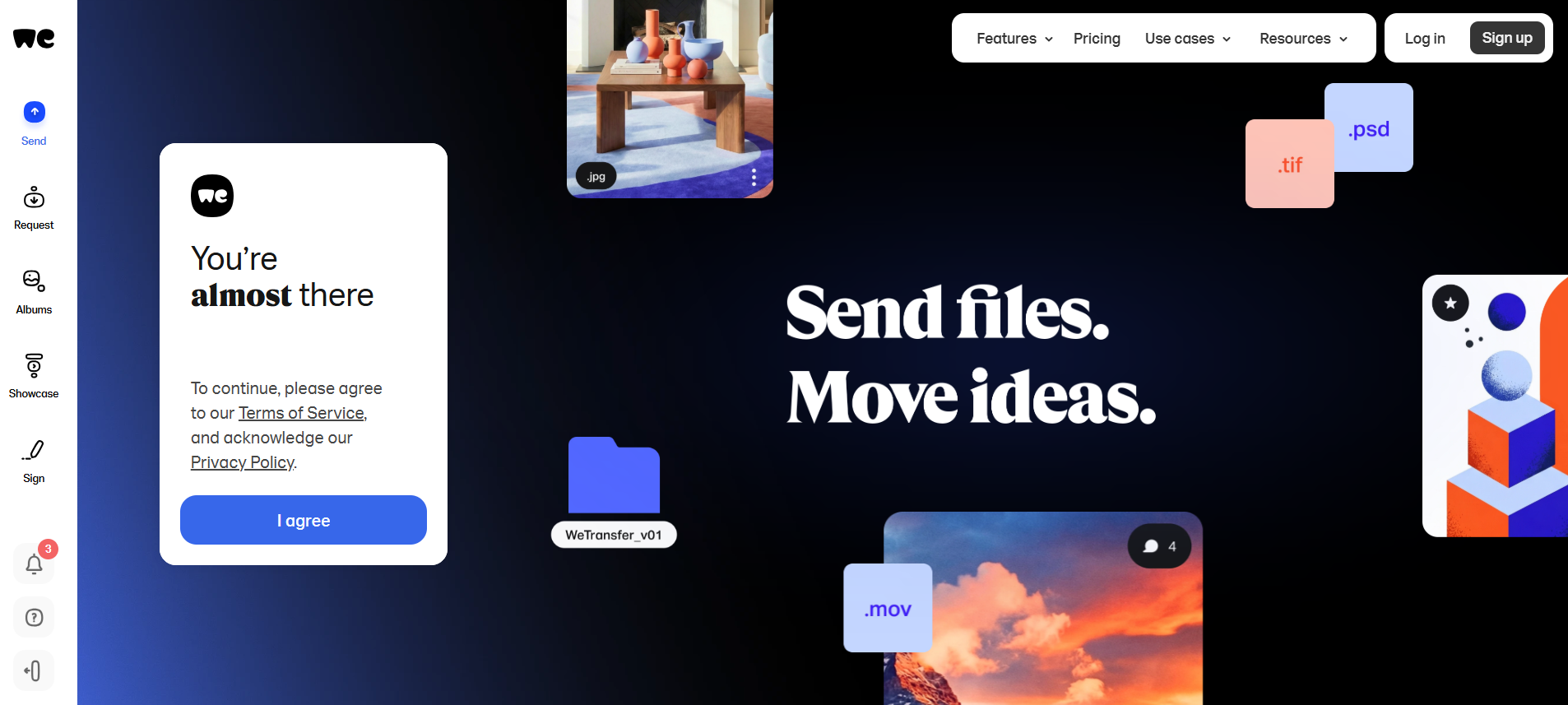
It saves you time because there is no setup or explanation. It’s like handing someone a package, but doing it digitally.
Now, does it help you earn more?
It could. Professional, painless delivery makes a difference. Handing over a project smoothly helps you get paid on time and leaves a good last impression, which is how you get repeat work.
#10 Monarch Money: the budgeting app
Yes, budgeting.
Your income is irregular. One month you’re rich; the next, you’re eating pasta with ketchup and calling it “new minimalism”. You need something that shows where your money goes, so you can plan around the lean months. That’s why I recommend Monarch Money.

Here’s what it can do:
- It syncs your accounts. You link your bank and credit card accounts, and transactions flow in and get categorized automatically.
- Customizable categories and budgets.
- Net worth and investment tracking. This is handy if you want one dashboard for everything.
- Forecasting and goals. You can plan ahead and track savings goals.
- Household sharing. You can invite collaborators, like a partner, at no extra cost.
Now, how does it save you time?
You stop doing money admin by hand. Your transactions flow in and get categorized on their own, so there’s no spreadsheet to update. Everything lives on one app, so checking where you stand takes minutes instead of an evening. And if you share finances with a partner, you both see the same numbers.
And how does it help you earn more?
Well, not directly, because Monarch won’t send you invoices or clients. But when you can see your lean months coming, you can plan for them instead of accepting a badly paid project or undercharging because the rent is due. It also detects recurring subscriptions, so you can spot the tools you pay for and never use, and a few forgotten charges add up over a year.
Overall, with Monarch, you stop being surprised by your own money, which makes it easier to price and say “no” like a person who isn’t broke.
#11 Grammarly: for writing that doesn’t embarrass you
Every freelancer writes proposals, emails, invoices, pitches, LinkedIn posts, etc. Typos in those are like a stain on your shirt right before a meeting: they are small—but everyone sees them. To remove those typos, you can use Grammarly.
Grammarly checks your spelling, grammar, punctuation, and tone as you write, in your browser, apps, and docs. It suggests clearer wording and can help you shift tone. It’s a very useful skill when a client is 3 weeks late with a payment.
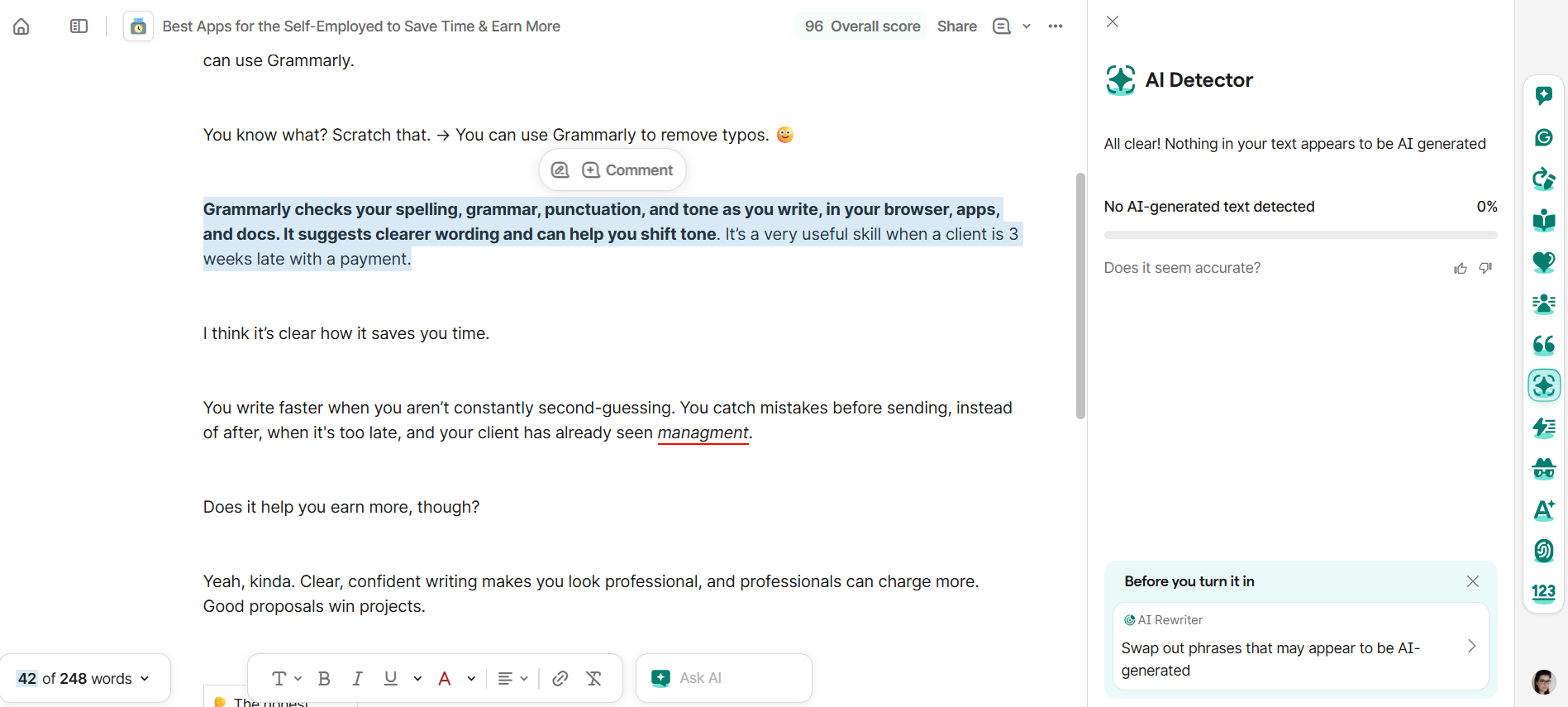
I think it’s clear how it saves you time.
You write faster when you aren’t constantly second-guessing. You catch mistakes before sending, instead of after, when it's too late and your client has already seen managment.
Does it help you earn more, though?
Yeah, kinda. Clear, confident writing makes you look professional, and professionals can charge more. Good proposals win projects.
#12 IFTTT: for connecting your apps
IFTTT stands for “if this, then that”, which is basically how automation works. If something happens in one app, something else happens in another.
You create small automations called Applets. For example: when you get a new email from a particular client, add a row in a spreadsheet. Or, when you save a file to one folder, post a notification somewhere else. It connects hundreds of services, from Gmail and Google Sheets to Notion and smart home gadgets.
Keep this in mind: IFTTT announced a major change on October 28, 2026. The site is moving from ifttt.com to IFTTT.ai, and the company says the limits on how many Applets you can have, and which services you can use, are gone on every plan, including the free one. Instead, each account gets a monthly allowance of credits that get spent when your Applets run.
There’s an AI angle, too. You can describe what you want in plain language, and IFTTT builds the Applet for you and connects it to AI assistants like Claude and ChatGPT.
Now, does it save you time?
Yes, sure. The best automations are the ones you forget exist. They handle the copy-paste work you’d otherwise do 40 times a month.
Plus, every hour you don’t spend on admin is an hour you can spend on paid work, or on rest, which also improves paid work. Funny how that works, ha?
Should you use all these apps?
All 12? No, honey, no! That doesn’t sound productive.
Here’s how I’d approach it if you’re starting from scratch:
- Start with Memtime. Before you optimize anything, find out where your time goes. Tracking is the foundation, and since it runs in the background, it doesn’t require any effort.
- Fix your money. Get a bookkeeping tool that works in your country, and a budgeting setup that handles irregular income.
- Remove the scheduling. Calendly’s free plan is enough for many people.
- Make yourself findable. A simple website beats a perfect website that doesn’t exist (I’m talking to myself right now.)
- Add the rest only when something annoys you. Annoyance is a great signal: if you keep losing files, add a better sharing method, or if you keep forgetting meeting details, try a transcription tool. If you keep doing the same thing over and over, automate it.
And one last tip. Please don’t get stuck in “app shopping.” It feels productive, but it isn’t. Setting up the perfect system is just masked procrastination. So, start small and build the system over time.
Now, off you go. Your inbox won’t ignore itself. 🙂
FAQs
How can freelancers earn more without working more hours?
Start by billing the work you already do. Small tasks and meetings that run over often go unbilled, and automatic time tracking shows you exactly how much you underbill. Use real data on how long projects take to set better quotes, and notice which clients drain your time for little pay. Making it easy to book a call and looking professional also helps clients say ”yes” faster.
Is automatic time tracking private?
It depends on the tool. With Memtime, your detailed activity timeline stays on your own computer and is never uploaded to the cloud. The trade-off is that your timeline doesn’t sync between devices. If you use Memtime Projects, only the time entries you assign to projects go to the cloud. You choose what gets assigned to a client and what stays out.
Are there free apps for freelancers?
Yes, but most free plans come with limits. Calendly’s free plan gives you unlimited meetings, one connected calendar, and one event type. Wix has a free plan, but it shows Wix ads and uses a Wix subdomain. Slack’s free plan only shows the last 90 days of messages, and Grammarly’s free version covers basic checks. Some tools, like Memtime and 1Password, offer free trials instead of free plans.
Is it safe to store client passwords in a password manager?
It’s generally safer than reusing the same password everywhere, as long as you set it up carefully. A password manager keeps your logins in an encrypted vault, protected by one master password. Make it long and unique, and never write it on a sticky note. 1Password also adds a Secret Key that stays on your devices, so keep the Emergency Kit PDF somewhere secure. Choose a provider with a solid security record, since stolen vault copies can be attacked offline for years.
Do I need to tell clients before using an AI meeting transcriber?
Yes, always! Tell people you’re recording and ask first, every time. Some clients and some countries take consent very seriously, so it’s worth checking the rules where you and your clients live. Also remember that transcripts aren’t perfect. Names, accents, and technical terms can trip the tool up, so proofread anything important.
Do freelancers really need a website?
Not always, but a website helps. A simple site with your services, a few examples of your work, and a contact form works for you even when you’re busy. A website builder like Wix lets you do this without coding or hiring a developer. The free plan is fine for testing, but its ads and subdomain look less professional, so most freelancers eventually upgrade. And remember: a simple site that exists beats a perfect one that doesn’t.

Aleksandra Mladenovic
Aleksandra Mladenovic is a copywriter and content writer with six years of experience in B2B SaaS and e-commerce marketing. She's a startup enthusiast specializing in topics ranging from technology and gaming to business and finance. Outside of work, Aleksandra can be found walking barefoot in nature, baking muffins, or jotting down poems.