Timely vs Toggl: How Do They Compare in a Real Workday?

Isn’t opening your time tracker every 10 minutes to check it the most joyful part of every workday? 😍
Said no one ever. Literally. No one!
Time tracking s*cks. It s*cks because it requires you to do yet another thing on top of your already busy schedule. And I bet that’s why you’re here, searching “timely vs toggl”—you’ve heard that both offer smooth tracking and you wanna know whom to give a shot.
Fair enough, so let me be straightforward with you: both tools are awesome; their feature lists aren’t the problem, since they both offer solid reports, calendars, and integrations.
The real question is how they handle your time data when your day goes south. Do they work even on your worst day, capturing each fragment of it?
That’s why we at Memtime decided to judge Timely and Toggl on these 6 things:
- How much manual input they need.
- Whether they require you to use a timer.
- How easy it is to reconstruct a messy day.
- How well they catch short bursts of work.
- How disruptive they feel.
- And whether the data holds up for billing & reporting.
Key Takeaways:
- Timely vs Toggl comes down to how you track time: Timely records computer activity automatically, while Toggl relies more on timers, rules, and manual entries.
- Timely suits fragmented workdays because its Memory timeline helps reconstruct activities and draft time entries for review.
- Toggl works well for people who prefer control over their timers, with reminders, calendar integration, auto-tracking rules, and detailed reports.
- Neither tool captures every short task perfectly. Timely’s AI can misclassify activities, while Toggl’s automation depends on setup.
- Timely and Toggl have similar paid-plan pricing: both start at $9 per user/month and offer a $16 mid-tier with annual billing.
- Memtime is an alternative for people who want passive tracking and local data storage. It records computer activity down to the second on Windows, macOS, and Linux.
- The best time tracker depends on your workday. Test your preferred tool with real tasks and context switches to see which time records you can trust for billing.

Additionally, both tools offer some kind of automatic tracking, but in 2026, “automatic” can mean basically anything. So, we’ll talk about that, too.
At the very end, you’ll meet a third tool that’s specifically built for people who don’t want to babysit a timer at all. But I’m getting ahead of myself.
Let’s start from the beginning.
What makes Timely different than Toggl (and the other way around)
Here’s the simplest way to think about Timely vs. Toggl.
Timely is automatic-first. You install a small desktop app called Memory, and it quietly records the apps, docs, websites, and meetings you use during the day on Windows and macOS. Timely’s AI then assigns those activities to projects and drafts time entries for you. You review and approve the drafts before they become logged time.
The raw activity data is private. Your teammates and managers only see the hours you actually log, not your Memory data.
Toggl is timer-first; automation comes second. You press start, then stop, or you type time in manually. Automation goes on top: calendar sync, a background Timeline, auto-tracking rules, reminders, and idle detection. You know Toggl’s famous for being quick and simple.
Overall, Toggl assumes you know what you’re working on and will tell it. Timely assumes you won’t, and tries to put everything together from what your computer saw.
Neither assumption is wrong, by the way. They’re just different.
The pricing
Pricing matters, so let’s get that out of the way first.
Timely has no free plan. Starter is $9 per user/month, Premium is $16, Unlimited is $22, and Enterprise (billed yearly). Starter is capped at 20 projects and a maximum of 5 users.
Toggl has a free tier. It covers up to 3 users on newer workspaces (though some older workspaces or accounts may show a limit of up to 5 users), and paid plans start at $9 per user/ month on Starter with annual billing. Premium runs $16 per user/month, and there’s also the Enterprise plan for custom solutions.
On price, the 2 are closer than they first appear. Billed annually, Timely and Toggl both charge $9 per user/month for their entry paid plan and $16 for the mid-tier. Neither is cheaper per seat at those levels. The real differences are in how you start and where the limits sit.
Your workday test
For the purpose of this article, can we pretend you’re someone else? Like, your name is Sam, and you’re a freelance project lead juggling three clients—A, B, and C. I hope that’s okay.
Your days are hectic and chopped up. Sometimes tasks take 3 minutes to do; sometimes you’re on an hour-long call with a client. Your day looks something like this:
- 8:50: Email triage. Mostly Client B.
- 9:15: Deep work on a strategy doc for Client A. You get 50 good minutes.
- 10:05: Client B pings Slack. You do a 6-minute Slack fix.
- 10:15: You attend a 15-minute internal standup.
- 10:30: You go back to Client A’s doc while you have 3 browser tabs open for something unrelated.
- 11:30: Video call with Client C. The calendar says an hour, but it was really 52 minutes.
- 12:30: You go grab lunch.
- 1:15: Client B design review.
- 2:30: You deal with the horde of requests. 12 micro-requests across Slack and email, 2-7 minutes each, for all 3 clients.
- 3:30: Time for internal admin.
- 4:15: Phone call with Client C, away from the laptop, not logged.
- 5:30: You’re done.
Let's see how each tool would handle this busy day.
You with Timely
Memory has been running since the morning. So, at 5:30, you get to open a timeline showing you the day: docs, browser tabs, Slack, email, calls on the computer. Timely turns what you’ve linked to projects into draft entries, which you can review and approve.

Now, to be fair, when you first start using Timely, the drafts are rough. The AI learns from the hours you log using your tracked activity, so it gets better as you use it. It also notices when a window or tab title matches something you’ve logged to a project before, which is handy for that strategy doc, but not so handy for the generic Inbox that serves all 3 clients.
The 4:15 phone call away from the laptop is what Timely misses. Timely lets you start a manual timer for things the Memory tracker can’t see, like offline meetings or phone calls. So, if you don’t remember to start and stop the timer, that phone call won’t be logged.
You with Toggl
This one depends on how you’ve set things up, so let’s run this same day twice.
- Version 1: You use the timer
You start a timer at 9:15 for Client A. Good. Then Slack pings at 10:05. Do you really switch the timer for a 6-minute fix? Errm, probably not. Those 6 minutes end up melting into Client A’s hour.
The standup and the Client C call? Also manual. You either start and stop 2 more timers or promise yourself you’ll log them later.
And that horde of requests at 2:30 is where you struggled. Twelve context switches in an hour means 12 chances to forget to start and stop a timer and label a project. One reviewer on Software Advice admitted that because Toggl relies on a manual timer, they sometimes forgot to press the start button. To be fair, editing entries afterward can help make up for it (to an extent).

- Version 2: You have auto-tracking switched on
This is how plenty of Toggl users actually run it. You connect the calendar with auto-track enabled, install the desktop app, and turn on Timeline.
First, the meetings. The standup and the Client C call turn into time entries automatically, created within about 5 minutes of each event’s start time. There’s just one thing to keep in mind: the entry follows the calendar event, and Toggl doesn’t update or delete it if the event changes afterward. So, unless you trim it by hand to fit the 52-minute call, it probably still shows up as an hour.
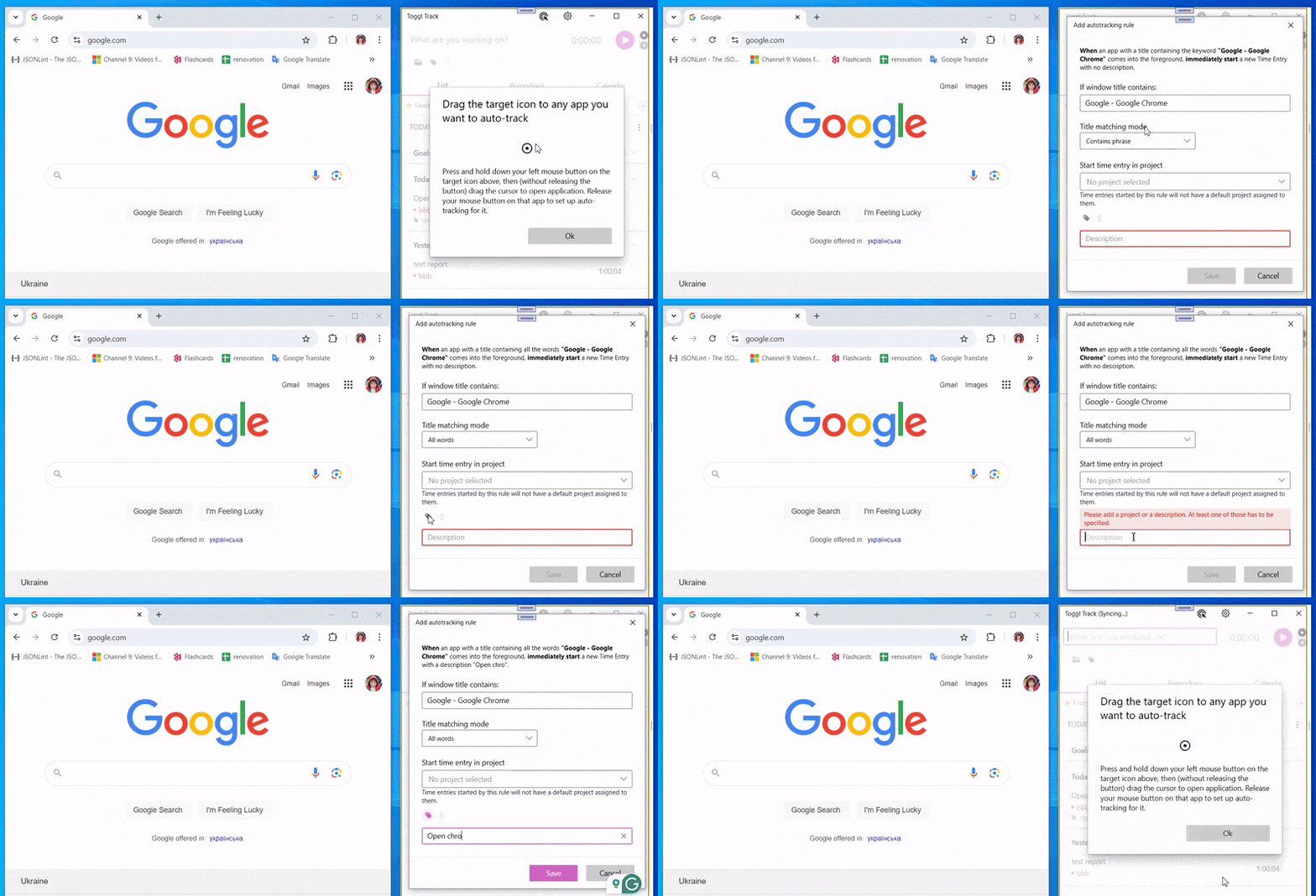
Then, the Client A doc. You can set up an auto-tracking rule in the Windows app by pointing at the window, then picking the project, description, and tags. From then on, a time entry starts when that window opens, and you choose how long it has to stay open before tracking kicks in. If the doc lives in a browser, the Chrome extension’s “Always Track This Page” option can do a similar job (it stops tracking when the tab closes).
Then, there’s the 6-minute Slack fix, and it depends on the rule. Auto-tracking is triggered by keywords in the app or window title, so a rule only helps if the title carries something that tells Client B apart from Clients A and C. The issue here is that you have the same program for several projects, and the log only showed the program name. And that “how long before tracking starts” setting cuts both ways: if you set it low, you’ll get vague entries, and if you set it high, small fixes, like 3-minute ones, won’t be logged.
Now the horde of requests.
This is where Timeline earns its keep. It records the apps you use and the sites you visit for more than 10 seconds, so those 12 micro-requests do show up. But Timeline doesn’t turn itself into time entries for privacy reasons, so at the end of the day you need to go through the activity and pick what becomes a time entry. The color-coded pills help: green means activity that matches a logged entry, red means activity with nothing logged against it. By default, that data is stored locally on your device, and syncing it to the web app is optional.
The 4:15 phone call is a blind spot, for sure. It’s away from the laptop; there’s no activity to record, so you have to type it in.
Overall, Toggl’s auto-tracking is all about setting up rules once, then reviewing your activity at the end of the day. It’s super useful for meetings and for work that lives in 1 app or 1 browser tab. The rules need setup and maintenance, and Timeline is a review tool, not an auto-filler.
Timely vs Toggl: Let’s score them
So, that’s your fictional day, and you’ve seen how both tools handle it. Now, let’s get *specific*.
We’re going to run through 6 rounds, with each one tackling a question that real people actually care about when they pick a time tracker (the ones I mentioned in the intro).
Each round ends with a quick verdict, like an edge for one tool or a tie when it’s honestly too close to call.
There’s no total score at the end, on purpose, because a tool that wins 4 rounds you don’t care about is still the wrong tool for you. So, read each round with your own workday in mind. Some will make you wince, others will make you grin. Those reactions tell you more than any score would.
You ready? We start with Round 1.
🥊 Round 1: How much manual input does each tool need?
Timely doesn’t need much input throughout the day—more after it. You need to review drafts and assign memories to projects. It basically needs you once a day, at the end of the day. For a lot of people, that’s a huge relief.
Toggl needs more of you. If you track everything with a timer, it needs you for every transition: start, stop, choose the project, add a description.
You can remove this pain by using Smart Suggestions and an Auto-Tracker that starts and stops time based on which app or window is active, using rules you set up. Rules take setup, but they’re flexible: a rule can log time against a task assigned to you, a project or a new task you type in, and even a description on its own is enough.
🥊 Round 2: What happens when you forget to start (or stop) the timer?
You will forget. Everyone does.
Toggl has a few safety nets:
- Reminders you can schedule for specific times or days.
- Idle detection. In the Chrome extension, you have to switch it on manually, and it won’t fire if the browser is closed. A user in Toggl’s community forum found a 68-hour entry the hard way. 🙂
- Entries can be edited afterward, so you can technically change the stop time.
Thankfully, these helpful tools exist.
Timely has a timer, but Memory records in the background, so you only need it for off-computer work. Memory is already recording, and the data is sitting in your timeline. You can technically forget to review, which is a different kind of forgetting. If Memory isn’t running, or you're off the computer, you can go back to manual tracking.
🥊 Round 3: How easy is it to reconstruct a fragmented day?
Well, Timely is basically built for this. Memory captures individual events, then Timely groups related ones into activities. You see a timeline and drag things into projects. Overlapping activities don’t inflate your total, so presenting a doc while answering an email doesn’t double-count. It gives you the kind of detail you’d appreciate.
Additionally, Timely’s timeline is private to you.
Toggl has a Timeline too, and it’s more of a reference than a replacement for a timer:
- It records computer activity in the background, but only while the desktop app is running, and it stops when your computer sleeps.
- In the web app it shows the last 7 days in 15-minute increments.
That’s pretty useful, but it’s still you doing the filling. Toggl also keeps only the last 90 days of synced Timeline data on its servers, and in practice it’s tighter than that: the desktop app shows only the last 10 days of synced data (or 8 weeks if you’ve turned sync off), which is not great if you’re reconstructing something from last quarter.
🥊 Round 4: How accurately do they capture short pieces of work?
This is the hardest round, and the one where neither tool is perfect.
Timely is built to see short bursts, but reviewers say it doesn’t always. Two Capterra reviewers said it missed small stuff: one said it doesn’t pick up time in small timeframes, and another said it sometimes didn’t capture smaller tasks like quick meetings, so they added those manually.
A few default settings might explain some of that. Timely’s help article on the Classic timeline describes a Memory noise cancellation option (High, Medium, Low, or Off) that hides micro-memories from rapid tab-switching, a “Maintain continuity” setting that ignores brief interruptions, and a Summary lane that shows only the most active memory per 15-minute block. I can’t say for sure that any of these explains those complaints, but if your day is full of short tasks, check them before you trust the numbers.
And the AI isn’t psychic. One Capterra reviewer said the AI sometimes misclassifies tasks and that manual override is limited. A Slack message to Client B and a Slack message to Client C look similar to a machine. You’ll want to check those.
Toggl Track captures short work if you time it, or if auto-tracking or Timeline catches it. With manual timers, people often don’t bother timing 4-minute tasks. And Toggl’s support team confirms that Toggl Track doesn’t support parallel timers, so if 2 things overlap, you choose one.
Timeline records anything you view for more than 10 seconds, but you have to turn those blocks into entries yourself, and auto-tracking rules need keywords that tell your clients apart.
🥊 Round 5: How disruptive does each tool feel during the day?
Timely is quieter during the day. Memory runs in the background and doesn’t ask you anything, but the trade-off is the setup. In a hands-on test by Shifton, a workforce software company that sells a competing product (so take it with a grain of salt!), the Memory tracker needed its own separate install, and desktop activity sometimes took 1-5 minutes to show up in the web app.
And a mild “i feel like it’s watching me” feeling is possible, even though it’s private.
Toggl is light, but it requires your attention. Every context switch is its own decision: “Should I change the timer?” And you could be one of those people who love that type of attention. Or not.
🥊 Round 6: How useful is the data for billing and project reporting?
This is where Toggl shines.
It has mature reporting and a long track record with freelancers and small teams:
- Starter includes billable rates, project estimates, and saved reports.
- Premium adds forecasting and fixed-fee project tracking.
The only downside with Toggl is that it depends mostly on how disciplined you are. That’s less true if you lean on its automation. Calendar auto-track turns meetings into time entries without a click, Auto-Tracker rules start an entry when a matching app or window comes to the foreground, and Smart Suggestions offer the most likely task in one click, with Timeline covering the gaps. The catch is the setup: rules only help if the window title tells your clients apart.
Timely is strong on the billing side, too. You can assign user-specific hourly rates and set time or money budgets. Premium adds project management and accounting integrations. The upside is that your logged hours tend to be more complete, because they come from recorded activity rather than recall. Timely’s pitch is all about recovering forgotten billable hours.
Timely’s downside is that AI-assisted data still needs a human check before it goes on an invoice, meaning that sometimes a wrong project assignment isn’t a typo but a billing error.
Timely pros & cons
Toggl pros & cons
So, Timely or Toggl?
If I were you, I’d pick Timely if:
- You’d rather review at the end of the day than click all day.
- Your day is fragmented, and you constantly forget timers.
- You care about not losing billable minutes.
- You don’t care about a free tier.
I’d also choose Toggl if:
- You like a timer or don’t mind playing with auto-tracking rules.
- You work on a small number of clearly defined tasks.
- You’re on a tight budget.
Now, let’s zoom out for a second.
We just spent a few thousand words dissecting 2 perfectly decent tools, hunting for the spots where your random busy day can make them trip. And that whole tool autopsy wasn’t a waste, since we uncovered a pattern:
- Toggl Track wants the day to live in your head, or in your rules. Auto-tracking helps, but somebody has to set up those rules, and somebody has to teach the tool that Slack for Client B is not Slack for Client C. And that somebody is you.
- Timely flips it. Memory records, the AI drafts, you approve, meaning way less clicking. But Memory is a separate install; it runs only on Windows and macOS, and your timeline lives in Timely’s cloud.
And that’s all cool.
But just imagine a tool that:
- Records everything on your computer from the moment you log on, with no timers, and no keywords to maintain
- Keeps that raw activity on your own machine, instead of in a cloud timeline
- Records down to the second, so short tasks don’t disappear
- Asks what to do with the time when you wander off
- Runs on Linux too
What if I told you a tool like that already exists? 😉
Third time’s the charm: Meet Memtime
Yeah, Memtime.
Here’s what it is: a desktop app that passively records every activity, down to the second (apps, websites, meetings, calls, and docs), from the moment you turn on your computer. It shows your day in a private timeline, called the Memory Aid.
- It records the names of your Slack conversations, including DMs, huddles, and group chats, and it also tracks Teams, Outlook, and Google Chat on the desktop. It imports your calendar events and shows them next to your actual time in Zoom, so you can compare scheduled meetings vs. what really happened. That’s handy when your 60-minute call was really 52.
- Data is stored only on your device. Memtime keeps everything local; there’s no cloud syncing for raw activity data.
- It runs on Windows, macOS, and Linux, and integrates with other time, project, and billing tools including Harvest, Asana, Jira, and many more. Yes, you could pair it with Toggl. Ha, funny how that works.
Now, I know what you’re thinking. It’s probably these 4 questions:
- Do I have to manually assign time entries?
- What if I want more team options?
- Does it work on a phone?
- Does it track calls?
Let me answer them all.
1. Do I have to manually assign time entries?
Maybe…
Here’s a quick explanation: Memtime records everything automatically, but you still decide whether to turn that activity into billable time entries.
Your day shows up in the Memory Aid, Memtime’s automatic timeline, which you can view in 1- to 60-minute intervals.

Next to it sits a time entries grid, and there are 3 ways to create entries:
- Click and drag in the grid, calendar-style.
- Click one or several recorded activities and turn them into an entry. You can assign it to a project task, add a comment, and pick an activity type.
- Use automation.
Automation works through rules you set up yourself. By default, automatic entries are switched off, and Memtime shows you suggestions instead, so you can see which rules behave before you let them run on their own. Rules can match your captured activities and apply to calendar events, like a recurring meeting that always belongs to one project. Rules apply from the moment you create them, not retroactively.
One more thing: the raw timeline stays on your device. Only the time entries you create and send on get exported to a connected tool.
2. What if I want more team options?
That's what Memtime Projects is for.
Memtime Projects is Memtime’s built-in, browser-based project management tool, and it’s included in all subscriptions at no extra cost. Here's what you can do with it:
- Create projects and tasks and share them with your team.
- Invite users, assign roles and permissions (such as Manager or User), and give tasks to one person or several at once.
- Get team-level reports on billability and productivity, compared across clients, services and team members.
In practice, it goes like this: when you sign up, you choose “I don’t use project software” and land in the web project dashboard, where you set up projects and tasks and invite people. Everyone installs the desktop app for the automatic tracking. Team members then log time from their own Memory Aid onto the shared projects, and those entries sync into the dashboard so the whole team can see where things stand. If you already live in Jira, Asana, or another project tool, you can use that integration instead.
Managers can view the time entries their team submits, but never their activity timelines. The Memory Aid stays private to each person. You see the hours people chose to log, not what’s in their browser tabs.
One thing that comes with Memtime Projects: this is time-entry visibility, not activity monitoring. If you’re into monitoring, Memtime is designed not to do that.
3. Does it work on a phone? & 4. Does it track calls?
Memtime is strictly a desktop app for Windows, macOS, and Linux.
That said, a few pieces do reach your phone:
- Projects on mobile. The Memtime Projects dashboard is mobile-friendly, so you can manage projects and tasks from any device.
- Phone calls (on a Premium plan). If you use an iPhone with a Mac signed into the same iCloud account, your iPhone calls can appear on your Memtime timeline next to your computer activity, ready to turn into time entries. That feature requires the Premium plan. Memtime also lists support for VoIP systems like Pascom, Sipgate, and FRITZ!Box, and an Android call history integration is coming soon (yay!).
So, if your 4:15 call happened on an iPhone paired with a Mac, and you’re on Premium, it could land on the timeline. ✅
That all being said...
IMO, Memtime suits people whose days are hectic: lots of tools, constant context switching, lots of short stuff, and zero patience for timers. If you’d rather see your day then report it, and you want that data to stay on your machine, it’s worth a trial. You can trust me; I use it daily. 🙂
The final word (keeping it quick)
Here’s the whole thing in one breath:
- Toggl Track is a simple, honest timer. Great when budget-minded and working on defined tasks.
- Timely is the automatic memory-keeper. Great when your day is messy, and you don’t mind reviewing activity.
- Memtime is a fully automatic, local-data option. Great when you want full visibility of your day without setting anything up.
Keep this in mind: the best tool matches how your day actually behaves. Once you’re honest about how you spend your days, the choice will make itself.
Test any tool the way you’d actually use it. Run one real, messy week through your top pick and see which numbers you’d trust enough to put on an invoice.
FAQs
Is Timely better than Toggl for freelancers?
It depends on how you prefer to track your time. Timely is a good option for freelancers who juggle multiple clients and frequently forget to start timers, thanks to its automatic activity tracking and AI-generated time entries. Toggl is a good fit for freelancers who prefer starting timers themselves and want flexible reporting. Both support billable rates and project tracking.
Does Timely track your computer activity automatically?
Yes, Timely uses a desktop app called Memory to record apps, documents, websites, and computer-based meetings in the background. It uses this activity to draft time entries that you review and approve. The raw activity timeline is private.
Can you use Toggl without starting a timer manually?
Yes, for sure, Toggl offers automation features. Depending on your setup, calendar integration, auto-tracking rules, Smart Suggestions, and Timeline can help capture or reconstruct your workday. However, some features require configuration, and you still need to convert Timeline activity into time entries manually.
Which time tracker is better for tracking multiple clients?
Both Timely and Toggl support project-based time tracking, but they handle client switching differently. Timely uses recorded activity and AI-generated drafts to help organize work across projects, although similar app or window names can lead to incorrect assignments. Toggl gives you more direct control through timers and configurable tracking rules, but those rules work best when activities clearly identify the relevant client. If you regularly switch between clients in the same apps, test how accurately each tool separates your work.
Is Memtime a good alternative to Timely and Toggl?
Yes, definitely. Memtime is worth considering if you want to record your computer activity without running a timer or configuring keyword-based tracking rules. It captures activity down to the second and stores raw activity data locally on your device. Unlike Timely, it runs on Linux, Windows, and macOS. You still need to review your timeline and decide which activities become time entries unless you set up automation.
Can you use Memtime with Toggl?
Yes, Memtime can work alongside Toggl through its integrations. Memtime records your computer activity automatically, while you can keep Toggl for time entries, reporting, and billing workflows. This combination can help you recover work you might otherwise forget to track without giving up Toggl’s reporting features. Be sure to check the available integration and your plan requirements before setting it up.

Aleksandra Mladenovic
Aleksandra Mladenovic is a copywriter and content writer with six years of experience in B2B SaaS and e-commerce marketing. She's a startup enthusiast specializing in topics ranging from technology and gaming to business and finance. Outside of work, Aleksandra can be found walking barefoot in nature, baking muffins, or jotting down poems.