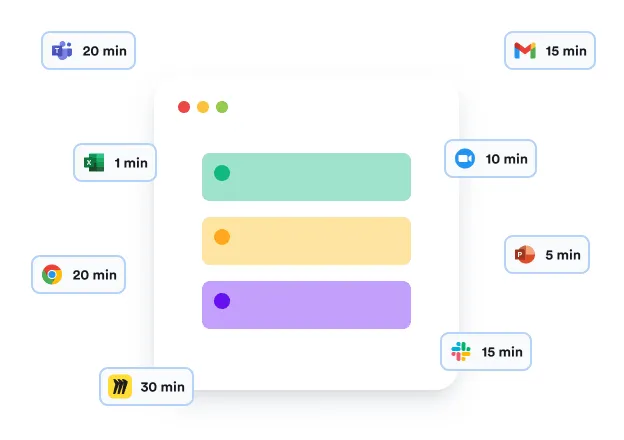
Memtime automatically records your time in programs to help you remember whatyou worked on. Create time entries and watch them appear in WorkflowMax under the right jobs and tasks.
No credit card required



1
2
3
4
No custom setup or bulky integration is needed. You only need to select WorkflowMax from the list of available integrations and authenticate your account to import projects and tasks into Memtime. From there, you can check automatically recorded activities, create time entries, and export them directly to WorkflowMax. In case you’d like a step-by-step walkthrough, you can check out the knowledge base article prepared by our team for this integration.
Memtime works with all types of desktop devices running Windows 10 or 11, macOS 12+, and Linux X113. Smartphones, tablets, and Chromebooks are not compatible with Memtime as they don’t allow activity tracking.
Memtime follows your mouse and keyboard input to determine the program running in the foreground. It doesn’t matter if you have many tabs or files open as Memtime will record every activity down to the minute. Even if you multitask or switch between programs.
Yes, you can use Memtime for free for 14 days, no credit card info required. It doesn’t cost anything to create an account and download Memtime on your computer. Automatic time tracking will start as soon as you’ve completed the installation process.
Memtime is the safest automatic time tracker for WorkflowMax as it keeps all recorded activity data offline on your computer only. No colleague or manager can see what you’re working on. You have full control of the time entries you create and upload to WorkflowMax.
You don’t need an extra tool to track time in WorkflowMax projects if you’re fine with manual timers and incomplete data. By integrating WorkflowMax with Memtime, you can forget about manual time tracking while also improving the accuracy of your data up to 95%.