Best Developer Time Tracking Tools That Make Everyday Easier
You don’t hate time tracking.
You hate bad time tracking.
I’m sure you know the kind: pop-ups mid-flow, forms asking what you did every 7 minutes, and tools that require more time to track time than the work itself. Nobody has time for that when your test is failing only on CI.
What you actually need is a time tracking tool that:
- Stays out of your way.
- Doesn’t nuke your focus.
- Isn’t a monitoring app.
In other words, something that respects your cognitive load and understands flow state.
Knowing all this, we created a list of the best time tracking software for developers who think the way you do. You deserve minimal friction and maximum sanity, and I firmly stand by that.
We’ve got no time to waste, let’s roll.
Key Takeways:
- You don’t hate tracking time, but you probably hate tools that interrupt your flow and steal focus.
- Good time tracking should respect how you work and your brain, and never yank you out of flow to ask you questions.
- When done right, time tracking gives you clarity, not control.
- Seeing where your time actually goes helps you spot context switching, busywork, and sneaky overwork.
- The best tools work quietly in the background and reduce cognitive load (like Memtime). They protect your focus.
- Our list of the best developer time-tracking tools exists to save you time, so you can stop doing admin work and focus just on your actual work.

First things first. Why should developers track time?
You want the most honest answer I can give you? Because, when done right, time tracking is like a friendly watchdog. It gives you clarity and truth.
With the right tool, you get an overview of all your context switches, merge conflicts, sprint planning, and more. It makes you:
#1 Get real about your work
If you’ve ever been asked, “How long will this take?” (I’m sure you have) and you responded with an optimistic, Monster-induced fantasy, know that you don’t have to do that anymore.
The right time tracking app gives you data so you don’t have to guess. Plus, over time, you can build a history of how long tasks actually take, which makes planning and estimation less painful.
#2 Spot context switching (and do something about it)
Context switching is basically a mental cache invalidation.
Just when your brain has the codebase loaded and dependencies mapped, an interruption ruins everything, forcing a cold start.
Tracking time shows you exactly where your mental cache keeps getting chopped, so you can carve out (and actually protect) dedicated deep work time on your calendar.
#3 Spot the busywork
A huge chunk of your day goes to sprints, meetings, documentation, reviews, Slack, Jira, alignment meetings about why there are too many meetings… ugh.
Time tracking turns all that mess into something you can actually communicate. Instead of saying “I’m swamped”, next time a PM wants you to do something, you can show them exactly what’s eating your time. You can even work with your PM to cut the focus-stealing stuff.
After all, real developer velocity comes from sustainable, uninterrupted work, not from looking busy.
#4 Spot overwork before it burns you out
Dev burnout is real, and ignoring workload doesn’t make it go away.
Time tracking can help you spot hidden patterns of overcommitment, so you can actually do something about them (before they costs you your mental health).

#5 Improve how work gets scoped
Ever finished a task and thought, “That was definitely NOT a small change”?
Time tracking can show you the things that never make it into tickets but still eat your time. All those extra reviews, unplanned refactors, surprise edge cases, and last-minute requests.
When you have real data, you can push back on undersized estimates and help future tickets get scoped based on reality (bye, scope creep).
What do developers need in a time tracker?
In my humble opinion, you need a tool that understands how your brain works, so it can protect your flow state, allowing you to work in peace.
You need an app that:
- Doesn’t interrupt you. Running quietly in the background, and only surfaces when YOU decide to look.
- Doesn’t create more cognitive load. You don’t need another mental tax but something lightweight and automatic. (Bonus points if it integrates with your task system, so you don’t have to copy-paste time entries.)
- Doesn’t promote busyness. The tool should help you be more efficient and focused, not make you spin in circles.
I’m pretty sure you don’t want bells and whistles, but a tool that makes your life easier. And, luckily for you, we at Memtime have a list of them.
10 best developer time tracking apps
Here’s a list of the 10 best developer time tracking tools, ordered by how much manual input they require. It’s based on how much they track in the background without manual input vs. requiring manual timers or entry.
- Memtime
- WakaTime
- RescueTime
- ActivityWatch
- Rize
- Timing
- Timely
- Clockify
- Toggl
- TimeCamp
And because we at Memtime get that you don’t have a lot of time to read through each tool, we decided to evaluate each app in 2 simple sections:
- The first one is the quick snapshot. This is the at-a-glance info you actually care about, like what the tool is, OS compatibility, flow state preservation score (1 to 5, 1 being chaos mode, 5 being total flow, zero distractions), and pricing (I know you don’t want it to cost more than a PS5).
- The second is the pros & cons table. Just the good and the bad of each tool.
Let’s get started.
#1 Memtime
Here’s the deal with Memtime.
We at Memtime loathe manual timers, and that’s why our tool will never make you hit start/stop every time you switch tasks or projects. This isn’t the ‘90s.
Once Memtime is installed, it sits quietly on your computer, observes app and window usage, and records it automatically. It memorizes your day, capturing activity down to the minute.
You get:
- A Memory Aid timeline. The automatic timeline shows what you worked on, when, and for how long. You can zoom in to 1-minute detail or zoom out to see your whole day. Memtime can even track your iPhone or voIP calls.
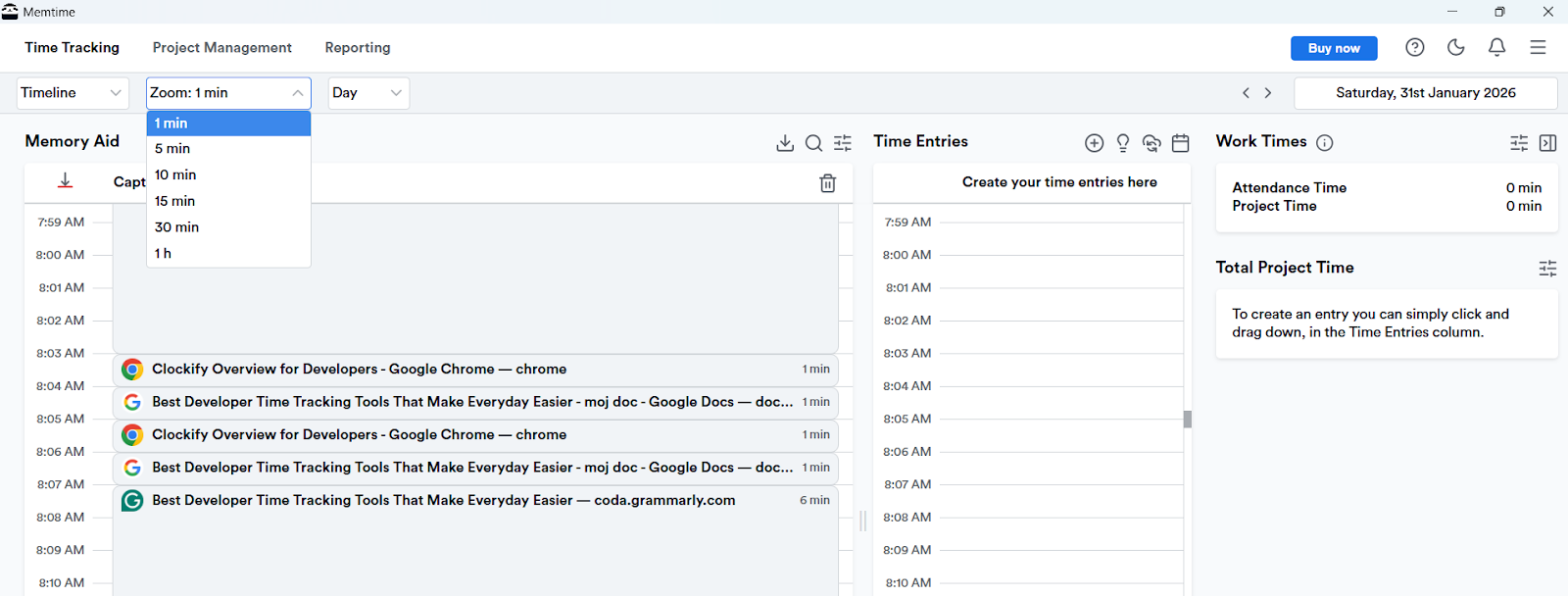
- Suggested time entries. From your timeline, you can drag to create time entries, or let Memtime make smart suggestions based on rules you set. Once you’ve got entries, you can export them or sync them with your project or billing software.

- Calendar integration. Memtime connects to your calendars (Google, Microsoft, iCloud, CalDAV, and Mac) and automatically tracks your meetings. It even compares planned vs. actual meeting time, so you can spot where meetings overrun or finish early. With this integration, it’s easier to protect focus blocks and get a real picture of your day.
- A 2-way integration. Memtime supports 100+ project integrations (Asana, Jira, you name it). Thanks to the 2-way sync, you can import projects and tasks from your tools, track time in Memtime, and export time entries back directly, fully structured, no copy-pasting.
.png)
- No cloud sync. Memtime stores your time data locally on your device. No one (not your PM or Scrum Master) can see what you worked on, and you can delete any captured activity that doesn’t sit right with you. The only way someone can get their hands on your data is if you decide to export it to a connected app (like project management software).

I think you get the vibe.
Memtime just sits there, quietly collecting the truth about your day, while you stay deep in flow and ship actual code. You get accurate time data that’s accessible whenever you need it (even months or years later).
If you like how that sounds, try Memtime free for 2 weeks; it’s on us. Just click the button below.
#2 WakaTime
WakaTime is like a Fitbit for your code; it measures what your keystrokes and editor focus tell it.
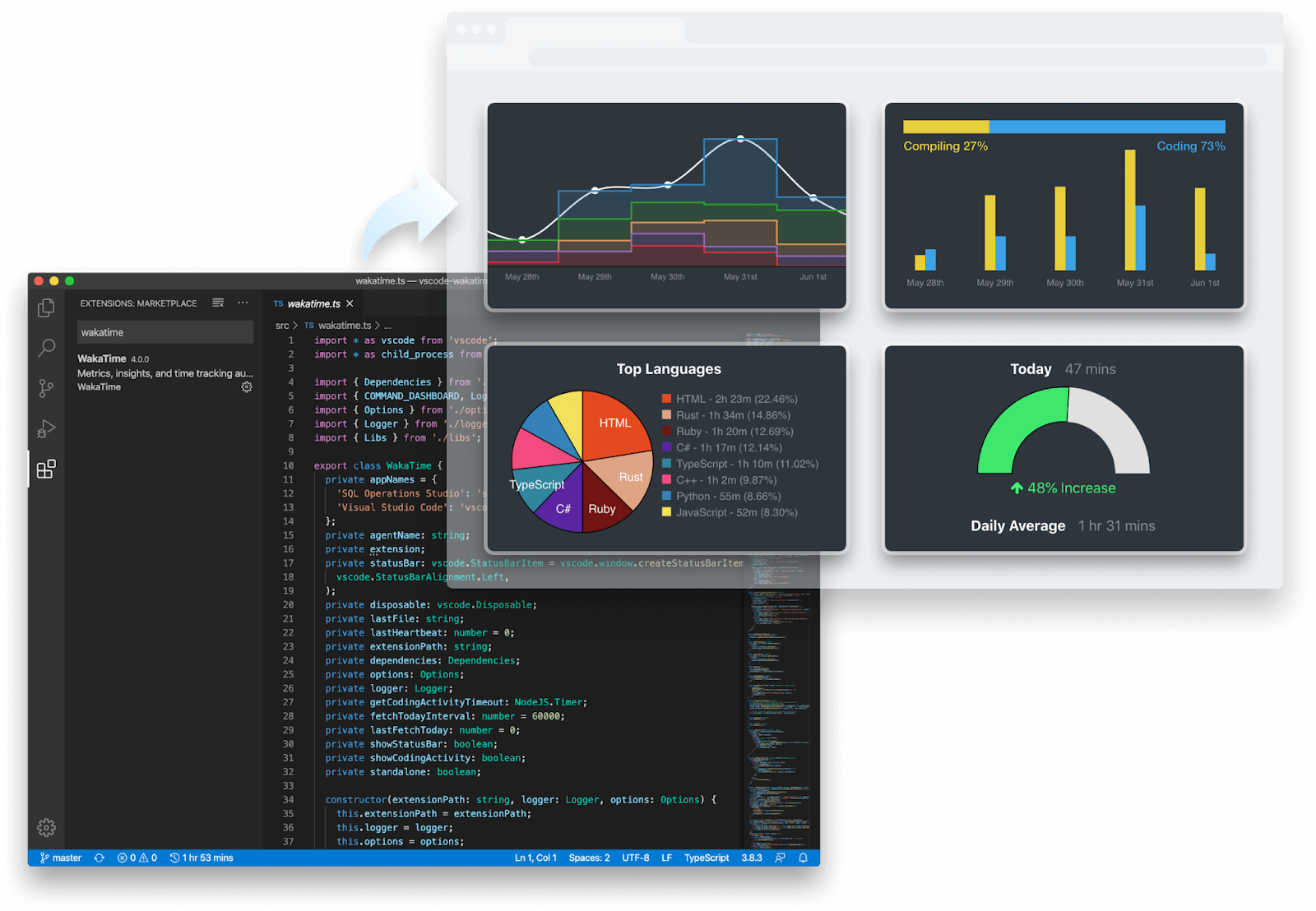
Here’s how it works:
- You install a WakaTime plugin in your editor (VS Code, Vim, Neovim, JetBrains, etc.), and it sends tiny signals whenever you actively type to WakaTime’s servers. Keep in mind your typing is tracked, your thinking about code isn’t.
- Depending on the plugin and plan, you get metrics like time spent per project, languages you code in, branches, commits, PR stats, editor/IDE usage, goals, leaderboards, etc.
- There are open-source plugins for most editors you’ve ever heard of, so you can see all your coding activity across IDEs. Editors like Vim even have community support via GitHub repos. Browser extensions exist for other types of workflows, like tracking Figma design time.
Besides its time tracking features, WakaTime can be fun; it comes with some playful and motivating features. For example, you get coding streaks and daily goals that turn your editor into a sort of productivity game, plus heatmaps that show when you’re most active (even those 2 AM bug fixes). There are also leaderboards if you want to compare activity with teammates (or just humblebrag).
Developers use WakaTime when they want to figure out code patterns (like what they spend most time on) or get personal analytics.
WakaTime is not a typical time tracker. It’s code-focused, automated, and full of metrics. If you want to understand your code habits and don’t need a tracker that keeps an eye on every meeting, document, and lunch break, WakaTime could be the app for you.
Tip: The free plan includes full automatic tracking across all major IDEs. Upgrading to Basic or Premium mostly adds advanced reports, leaderboards, and team stats, so don’t pay extra unless you actually need the analytics.
#3 RescueTime
RescueTime is like an understanding coach for your work life, but with no motivational pep talks and a bunch of charts.

The app runs in the background, captures what you do online and on your computer, then translates it into productivity insights and trend analytics.
Here’s how it works:
- Once you install RescueTime’s app on your desktop (and/or your phone), it starts quietly logging the apps you use, websites you visit, meetings from your calendar, and offline work.
- RescueTime sees your active window, how long you use it, and automatically categorizes activities into productivity categories (like very productive and distracting), and then shows you patterns.
- The app interprets your hours, giving productivity scoring, charts, and dashboards with app/website breakdowns.
- You can set daily or weekly goals and enter Focus Sessions to block distracting sites or apps. If you have Spotify Premium, you can integrate it into RescueTime to play the concentration playlist during the session.
- On paid tiers, RescueTime can create timesheets and do basic project/client assignments.
RescueTime is a fully automatic productivity tool. It works well for devs who need clarity on how their time is actually spent. It’s designed to help you understand and improve your workflow.
#4 ActivityWatch
You want control over the time tracking app’s code, data, or server? You get all of that with ActivityWatch. It’s designed to automatically track your activity and be fully transparent and customizable.
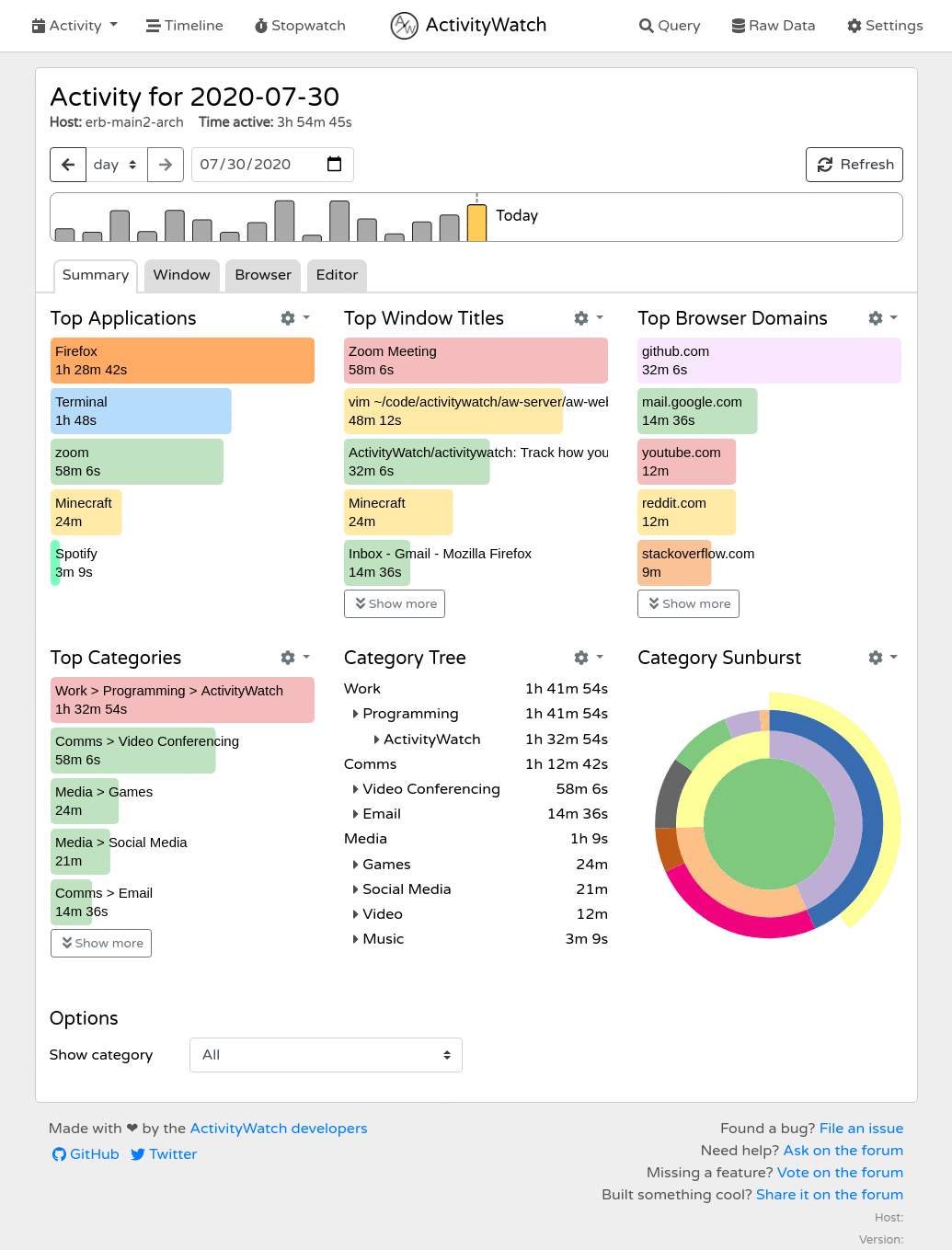
Here’s how the tool works:
- You install ActivityWatch, start it, and it begins capturing which app or window is active. It also tracks browser tabs (via Chrome or Firefox extensions).
- It detects when you’re idle vs. actively working, and you get an AFK (Away From Keyboard) status.
- Extra activity is tracked by watchers, plugins that track more specific behaviors (like coding environments).
- ActivityWatch keeps all your data in a local database that you access via a web UI at localhost:5600. In there, you can see timelines of your usage, group and filter activities, and generate reports.
- If you’d like to improve ActivityWatch, you can build your own automation or data export logic using the REST API, create custom categories or tracking rules, and write scripts that filter or change data before you analyze it. You can basically mold it however you want.
All in all, ActivityWatch is for you if you hate giving up control. It doesn’t do much beyond activity tracking, but it will give you detailed, private insights into how you spend your time.
#5 Rize
Rize is an AI-based tool that automatically captures your work behavior, categorizes it, and gives you insights.
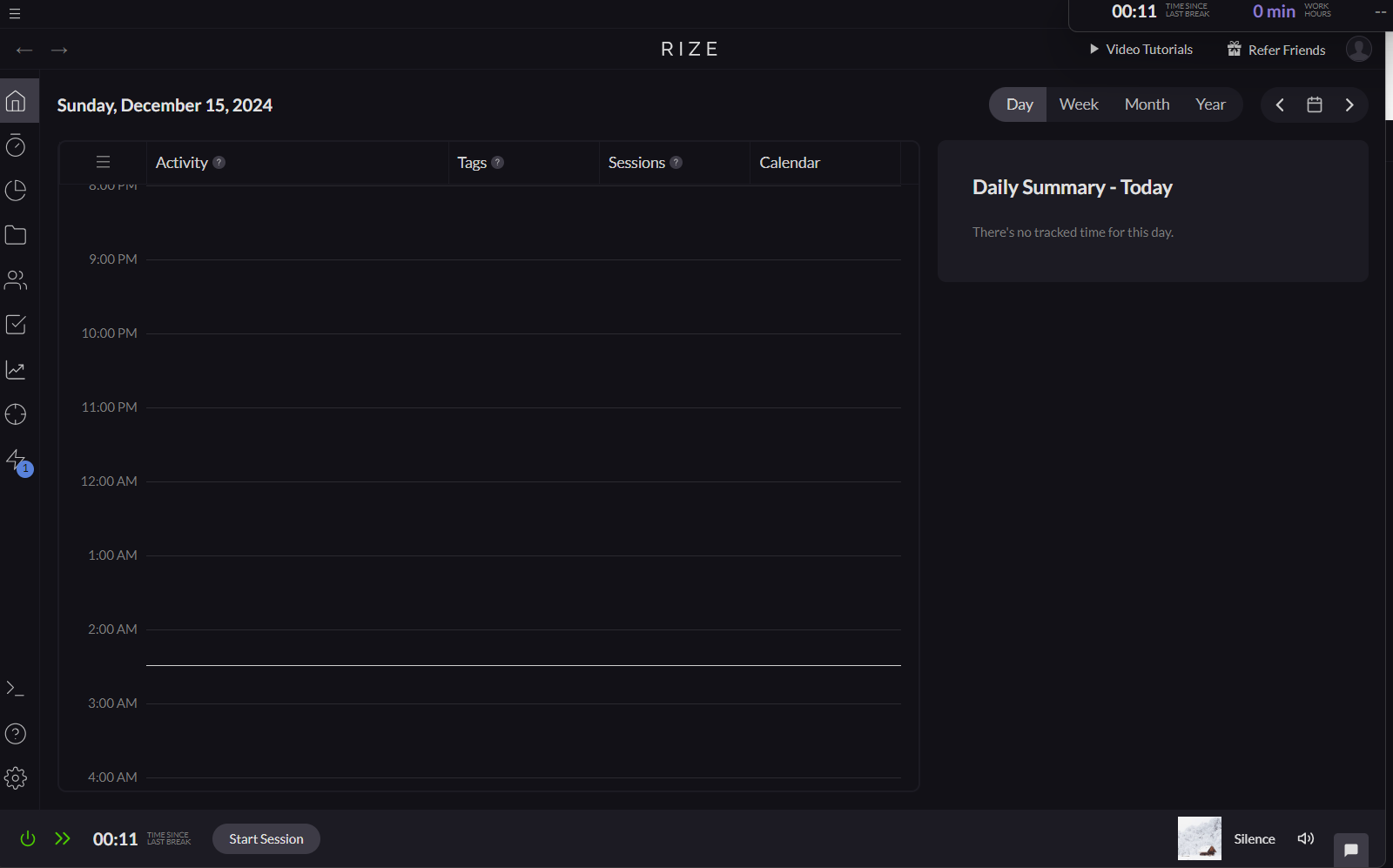
Here’s how it works:
- Once installed, Rize monitors your active window’s metadata and saves it to a real‑time timeline. It then uses that data to categorize activity based on rules you made or the AI’s learned behavior (the metadata it collects is used for understanding what you’re doing).
- You can schedule tracking (auto‑on and off), so Rize doesn’t track when you don’t want it to.
- The app gives you focus metrics and quality scores, a built-in distraction blocker, focus music, AI‑suggested break reminders, and meeting detection via calendar sync. You also get daily and weekly reports delivered to your inbox.
- Rize integrates via Zapier or APIs for workflows with Google Calendar, Notion, Slack, and so on.
Rize is a time tracker but it’s also a well-rounded productivity app. It’s all about automatic capture, AI categorization, focus improvements, and insights. That said, the price for the full stack of features can be a bit much. But if you’re into AI automation, Rize definitely won’t feel like overkill.
#6 Timing App
Timing is a Mac-focused automatic activity tracker with retrospective timesheets. It quietly logs your activity while you work, then lets you organize it afterward.
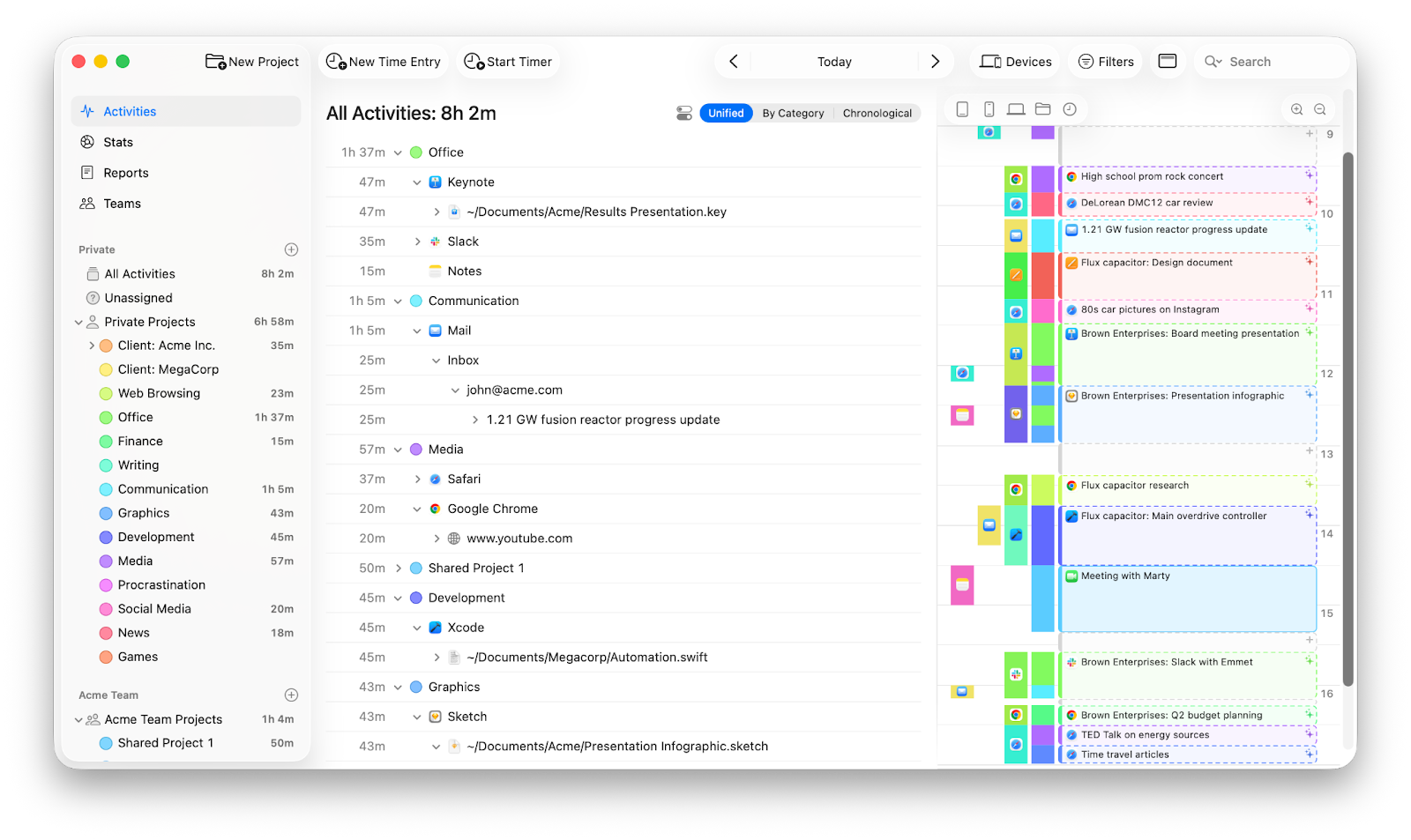
Here’s how the app works:
- Once installed and running on your Mac, Timing automatically records your apps, docs, sites, phone calls from your iPhone, and meetings. It also detects idle time and can prompt you to assign what you were doing during breaks.
- The app then offers a visual timeline that breaks your day down into chunks. Over time, you can create project rules (like, “enter this project when activity matches that”).
- The tool includes AI summaries that group related work into sessions and patterns.
- You can also add manual time entries or use a start/stop timer if you want more control.
- You can export reports (PDF, CSV, XLSX, HTML) to share.
- With the web app, you can start/stop timers from your phone or sync data across multiple Macs if you use more than one.
Timing is a decent time tracker for Mac. It gets you automatic tracking, contextual timelines, AI summaries, calendar and call integration, and exportable reports. It’s not perfect, especially if Linux is your jam. Also, keep in mind that manual tweaks and rules take a bit of learning.
#7 Timely
Timely is definitely not your grandmother’s stopwatch timer; it’s a fully automatic time tracking and project management app. It’s built to help you cut admin and improve billing accuracy.
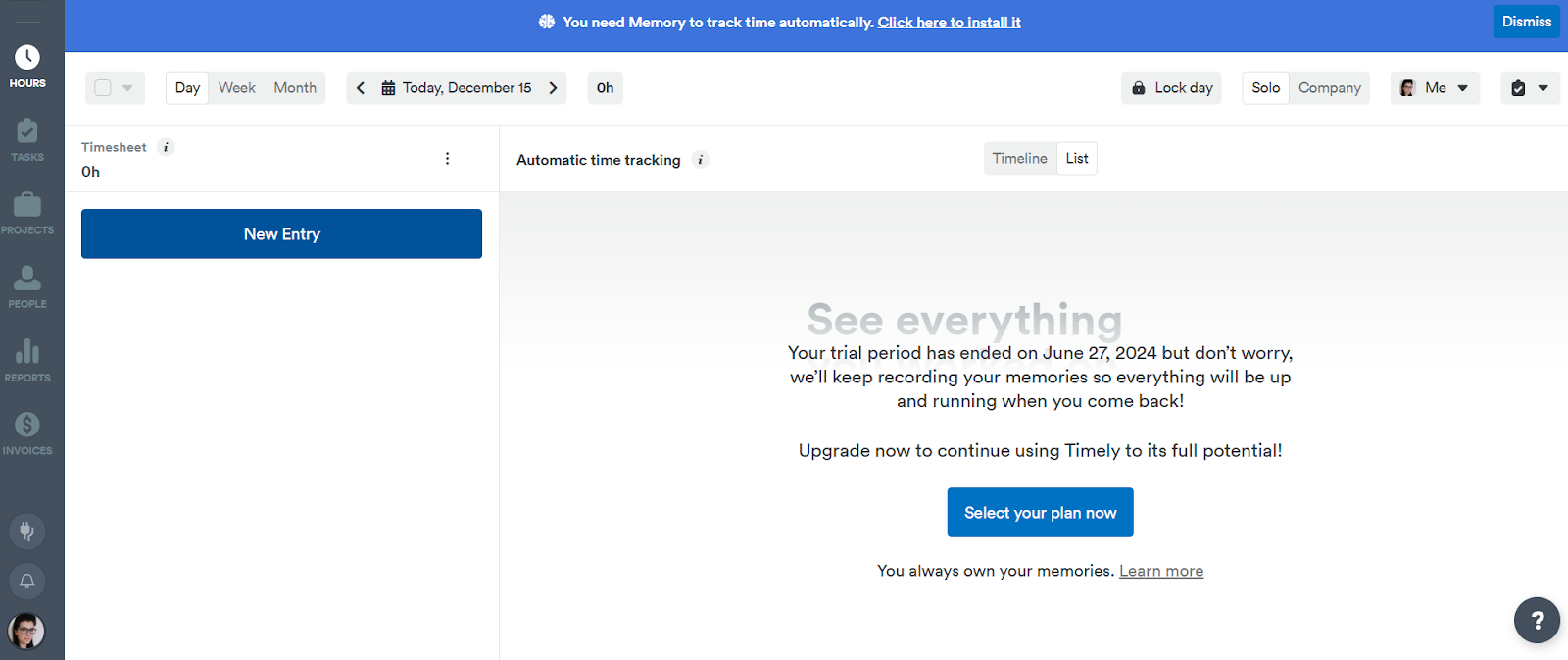
At the heart of Timely is the Memory App (desktop and optionally mobile), which automatically records the apps, websites, and meetings. This means that Timely basically builds a complete timeline for you (similar to Memtime).
And here’s what you can do once time is captured:
- Once you assign your rate, you can track revenue vs. cost.
- Do reporting and exports.
Timely also comes with AutoSheet, an AI timesheet assistant that drafts your timesheet automatically based on the tracked activity. You can then review it and submit.
The tool also connects with other project apps (think ClickUp, Jira), communication, and accounting tools, as well as some other trackers (like Harvest).
All in all, Timely is a good option if you don’t want to think about time tracking. It can help you turn time data into insight for billing and planning. That said, it’s a more team-oriented app, in the sense that if you run teams, or obsess over client billing, or projects, it can get you the insights you need.
#8 Clockify
Clockify is all about timers and timesheet workflows. You start a timer when you begin work and stop it when you’re done, or manually enter hours later. All your entries sync online, so you can switch between desktop, phone, and browser.
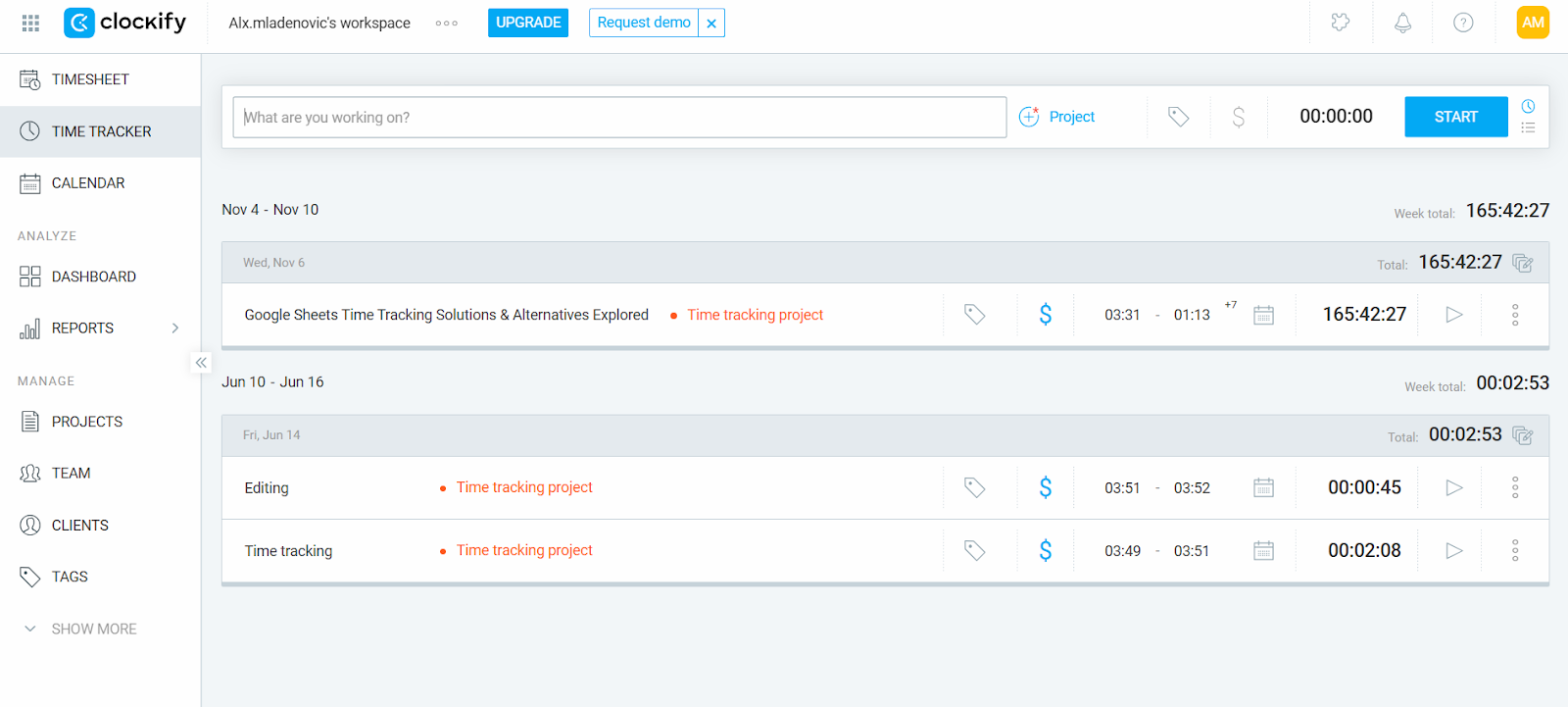
Once you have tracked time, you get access to reports that you can share or analyze; for example, to know how many hours you spent per project, what’s billable, and what isn’t. If you have a team, you can set roles, approve timesheets, and keep track of PTO and overtime.
Clockify doesn’t automatically track which apps or docs you’re using, but its desktop app includes a feature called Auto Tracker. When you enable it, the app silently records the apps, docs, and websites you use as you work. It then keeps an activity log you can convert into entries. That said, Auto Tracker keeps a log of what you use, but you still need to manually select those activities and convert them into tracked time entries.
Moreover, Clockify integrates with over 80 tools, like Google Workspace and Trello, and lets you create invoices based on tracked time.
Overall, Clockify is a solid manual time tracker. The best thing about it is that it doesn’t force you into a paid plan right away. It’s not fully automatic, but gives you control over timers, sheets, and reports, all from one place.
#9 Toggl Track
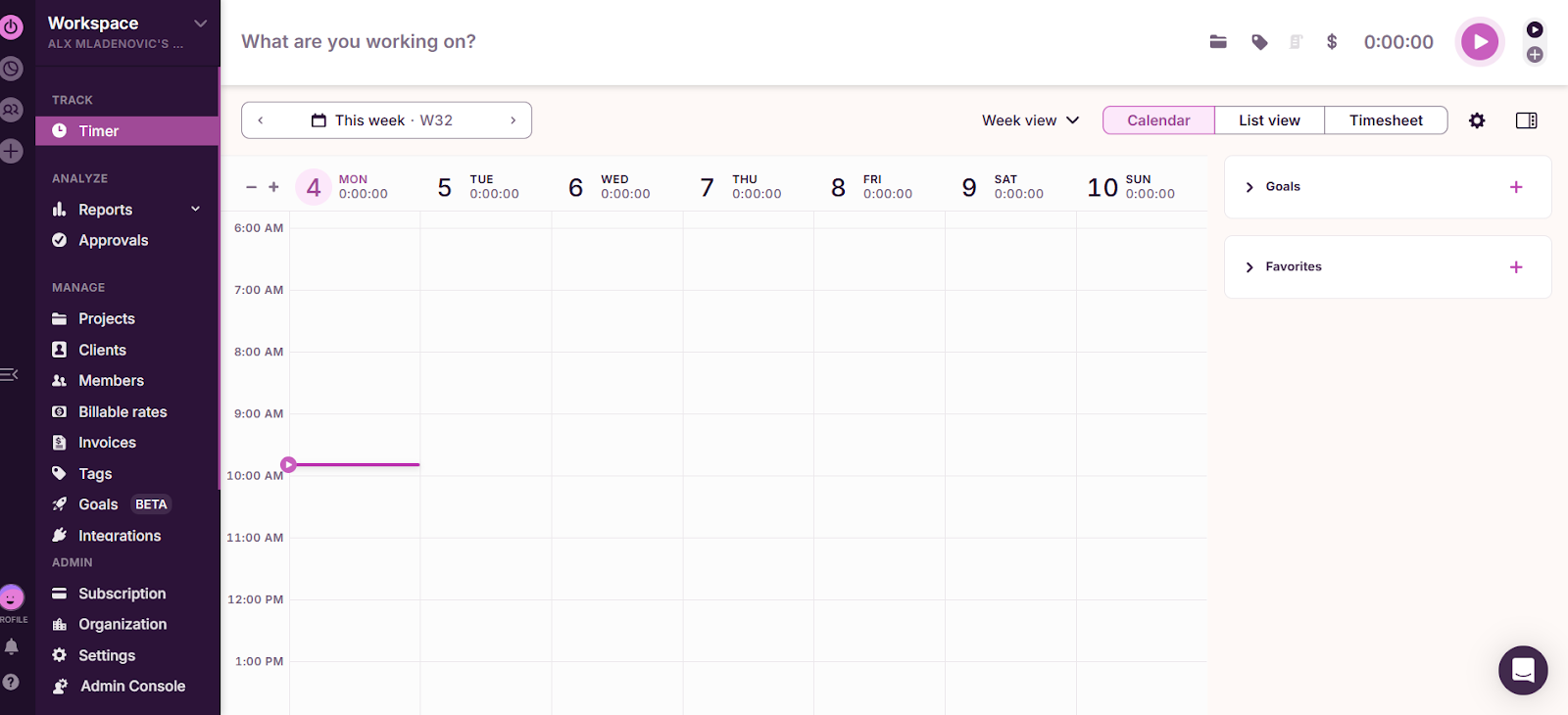
Toggl Track is all about a start/stop timer, manual entries, calendar and list views, and semi-automated activity recording.
What do I mean by “semi-automated”?
Well, with Toggl, you get a desktop app that can capture what apps and sites you use while working; you just need to enable it. Then, you can turn that activity into time entries when you’re ready.
There are also some autotracking rules. Meaning, you can choose keywords (like part of a window title), project, description, tags, and when you open that app or window, a new time entry can start automatically, or you’ll be notified to accept it. For example, if you are always in a document called “Project X”, you could create a rule to start a time entry every time that window
Also, once you install the Toggl Track browser extension, you can enable Auto Tracker to choose which pages (or websites) should auto-start tracking, decide how long you must stay on a page before time begins, and, optionally, stop automatically when you close the tab.
Toggl Track isn’t as fully automatic as some other apps on this list, but it offers decent semi-automation and can take a bit of the manual burden off you.
One of the best things about this app is that it can connect to tools like Jira, Asana, Slack, and GitHub, via integrations (not 2-way, though) or browser extensions. So, you can technically start tracking contextually, right from where you’re coding or planning work.
Overall, Toggl is an easy to use, flexible time tracker that gives you good reporting and semi-automated tracking features. It’s a mix of manual control and background activity, so it’s a bit more powerful than simple timers.
#10 TimeCamp
TimeCamp is all about time tracking, productivity, and attendance.
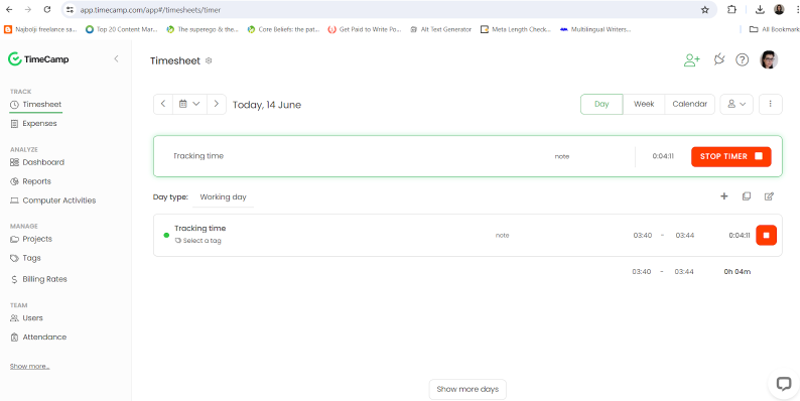
Once you install the desktop app and enable its optional activity tracking module, TimeCamp monitors app usage, visited websites, and opened files, giving you a timeline of what you worked on without manual start/stop. You can define keywords (like project names or task tags), so the tool assigns tracked time to the correct context without your input.
You can also manually add or edit time entries, view timesheets in different formats, and fill in gaps if needed.
Once you’ve tracked time, you can generate reports and export them (on paid plans). And if you’re into idle detection, it automatically captures breaks and downtime. It also offers attendance tracking and a time clock kiosk mode for teams (with PIN access).
When it comes to integrations, TimeCamp connects with project tools like Jira, Trello, Asana, and Azure DevOps.
Bottom line: TimeCamp is a decent, semi-automated time tracker. It can help with your productivity and reports. Its free plan is surprisingly capable, and its paid tiers get you more advanced project billing and admin controls.
Stopping with the yapping
Alright. Deep breath. We’ve reached the end of the scroll.
If you can take one thing away from the article, let it be this: time tracking isn’t the enemy, but bad tools are. You don’t need an app that taps you on the shoulder every 5 minutes like, “hey bestie, what are you doing?”
Good time tracking is invisible, so choose an app that gives you full autopilot.
My suggestion? Memtime, any day.
But don’t trust me, try Memtime for 2 weeks, and if it annoys you, drop it without guilt. Life’s too short, and your CI is already red.
Okay, yapping officially stopped. Leaving you with your precious thoughts.
FAQs
Do developers really need time tracking?
Yes, definitely! And it’s not because someone’s watching them, but because guessing time sucks. Good time tracking gives you receipts for your work, not guilt.
Won’t time tracking ruin my flow?
Bad tools will certainly ruin your flow, yes. Good ones stay invisible and don’t interrupt you mid-thought or mid-compile. That’s why fully automatic trackers like Memtime exist: tracking happens without you having to think about it.
Isn’t automatic time tracking basically surveillance?
It can be, if the tool is built specifically for monitoring instead of humans. Privacy-first tools (like Memtime or ActivityWatch) keep data local and let you decide what gets shared. Their goal is to foster self-awareness, not make you feel micromanaged.
What’s the difference between automatic and semi-automatic tracking?
Automatic tracking records activity in the background with zero effort from you. Semi-automatic tools still rely on timers, confirmations, or rules you have to maintain. So, if you hate babysitting your tracker, fully automatic options (like Memtime) are way easier to work with.
Can time tracking actually reduce burnout?
Yes, of course. Time tracking exposes overwork before it becomes your new normal. When you can see patterns clearly, it’s easier to push back and rebalance. Having accurate data (instead of just your vibes) makes those conversations with your PM way less painful.
Which time tracker is best for developers?
The best one is the one you forget exists until you need answers. For devs who want flow, privacy, and zero interruptions, Memtime is probably the one. Try a few if you want, but once you experience invisible tracking, it’s tough to go back.

Aleksandra Mladenovic
Aleksandra Mladenovic is a copywriter and content writer with six years of experience in B2B SaaS and e-commerce marketing. She's a startup enthusiast specializing in topics ranging from technology and gaming to business and finance. Outside of work, Aleksandra can be found walking barefoot in nature, baking muffins, or jotting down poems.