Xero Time Tracking Features & Powerful Integrations Reviewed

Xero time tracking is a lot like instant coffee. It gets the job done, and it’s perfectly acceptable to your taste buds. But once you’ve tasted the good stuff, it’s hard not to wonder why you ever settled.
Xero’s built-in time tracking works; there’s no doubt about that. But “works” and “wows” are 2 very different things.
And that’s exactly why we’re here.
In this guide, we’ll break down how time tracking actually works inside Xero, what its native features can (and can’t) do, and how integrations step in when “good enough” just isn’t cutting it anymore.
With these integrations, you’ll be able to bill clients without guesswork, and figure out where your team’s time really goes.
No more chit-chat, let’s roll and find you a smarter way to make time tracking with Xero less manual.
Key Takeaways
- Xero’s built-in time tracking does the job and is easy to use, but it won’t blow your mind.
- You can track time per project or task, set hourly rates, and turn logged hours into invoices without leaving Xero.
- There’s no true free option here; Xero time tracking is available only with paid plans and the Projects add-on.
- Manually starting timers and entering hours can get tedious, especially as your workload or team grows.
- That’s where integrations (like Memtime) come in, adding automation, better insights, and no stress.
- Pick the right tool, and suddenly time tracking, billing, and reporting feel a whole lot easier (and less annoying).

How does time recording in Xero work?
As you’re probably aware, Xero has a built-in time tracking feature to help you log hours and ensure your projects meet deadlines.
Before we dive into how Xero’s native time tracking works, let me just set the stage.
First things first. When I created my free trial account, I immediately had access to Xero Projects based on the preferences I chose during setup. This made it easy to start tracking time and experimenting with tasks without any extra setup.
Second, if you aren’t that familiar with Xero and Xero Projects, Xero Projects is an add-on to Xero’s core accounting system. You need to enable it separately, either during setup or later as an additional paid feature.
And third, for the purpose of this article, I created a project in Xero for a client called Memtime (obvi), named Writing.
Within that project, I added five separate tasks: Research, Outlining the structure, Writing, Editing, and Optimizing. Each task was assigned its own hourly rate (all completely made up, of course).
Now that that’s out of the way, here’s how time tracking works in Xero, step by step:
- Once you open Xero, you navigate to Projects.
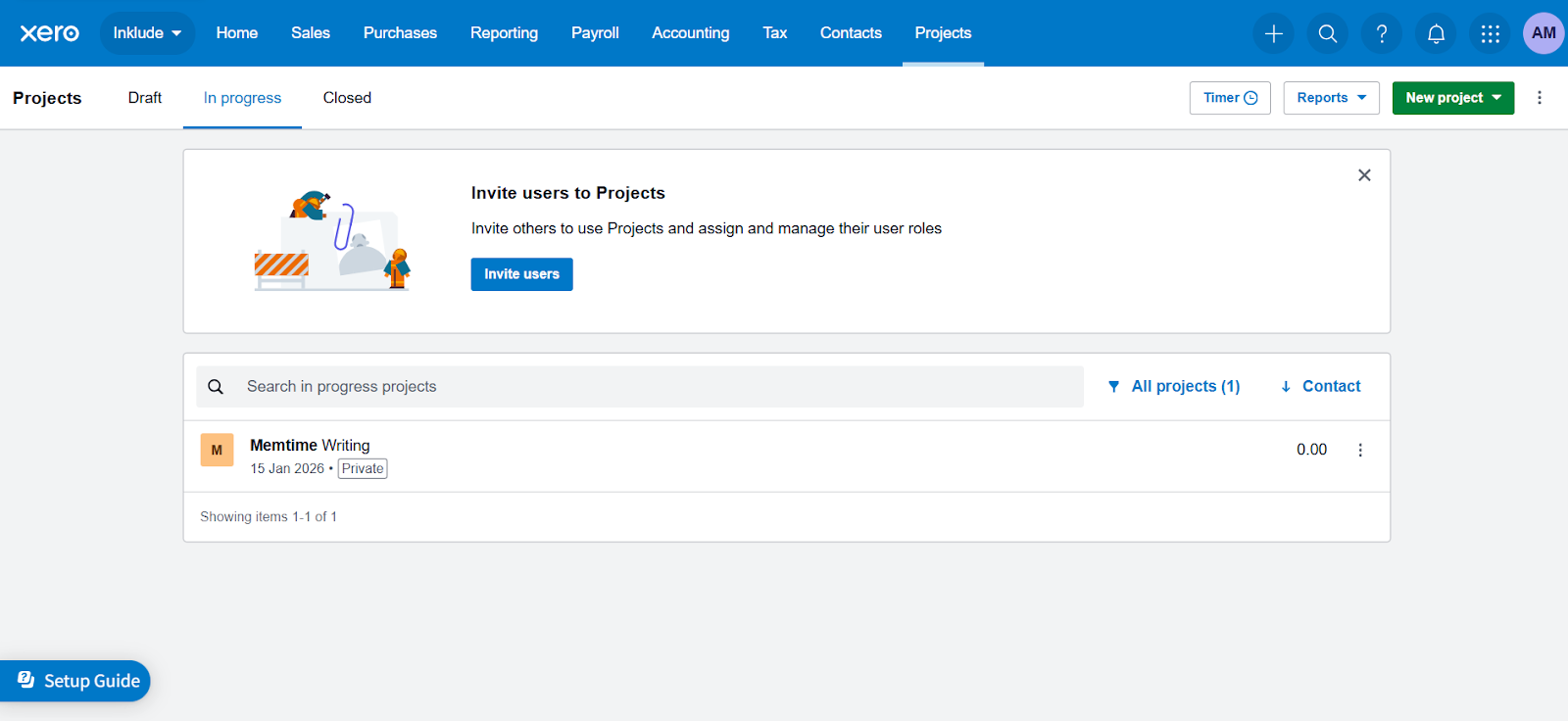
- You then click the project in question to see all your tasks. Mine is called Writing, for the Memtime client.

- Xero works with a manual timer. There are two ways to track time: by adding a manual time entry or using a timer.
With manual time entry, you open a task, add time spent (total duration), and save the entry. Xero then automatically calculates the estimated amount, based on your estimated hours and hourly rate.

If you want real-time tracking, you start the timer when you begin working and stop it when you’re finished. When you hit start, Xero asks you to select the project and task you want to log time against.

And that’s pretty much it; there’s nothing more to Xero time tracking.
From this point on, you can also check out the Timesheets feature, which is mainly tied to payroll and employee time tracking, as part of its core tools. It’s different from the Project time tracking you use for billing clients. You can turn on Timesheets in Xero’s settings.
Or.
You can create an invoice. From the Xero dashboard, you click Sales, then Invoices.
This shows your invoice overview page, where you can see drafts, awaiting approval, and sent invoices. It also lets you create a new invoice. The entire process is intuitive: you enter usual invoice information, such as date, due date, payment terms, line items, and so on. If you track time via Projects, like I did, you can pull hours into your invoice lines.
Pros & cons of Xero time tracking
Xero’s native time tracking is okay. That’s the right word.
Here’s a look at its strengths and limitations, because there are some trade-offs that might affect your workflow.
Pros of Xero’s native time tracking
- It’s integrated directly into Xero. Since the time tracking is part of Xero Projects, you don’t need to sign up for a separate tool, remember multiple logins, or export/import data. Everything, from tracking hours to billing and reporting, lives within the same platform.
- You get an intuitive interface. The workflow is straightforward: you create a project, then tasks, then log hours either manually or via a timer, and assign hourly rates. There’s almost no learning curve (I can vouch for that).
- You get task-based tracking with customizable rates. Xero allows you to set different hourly rates for each task within a project. I find it particularly useful when your work includes a mix of services billed at different rates; thanks to this feature, your invoices can reflect the actual value of the work done.
- You can connect hours to projects and invoicing. The tracked time can feed into project reports and be added to invoices. This allows you to calculate project profitability and bill clients accurately (without manually calculating hours and rates outside Xero).
- You get basic reporting and monitoring of project progress. Xero includes summary reports that let you see total hours worked, estimated vs. actual time, and project costs. Like this one right here:
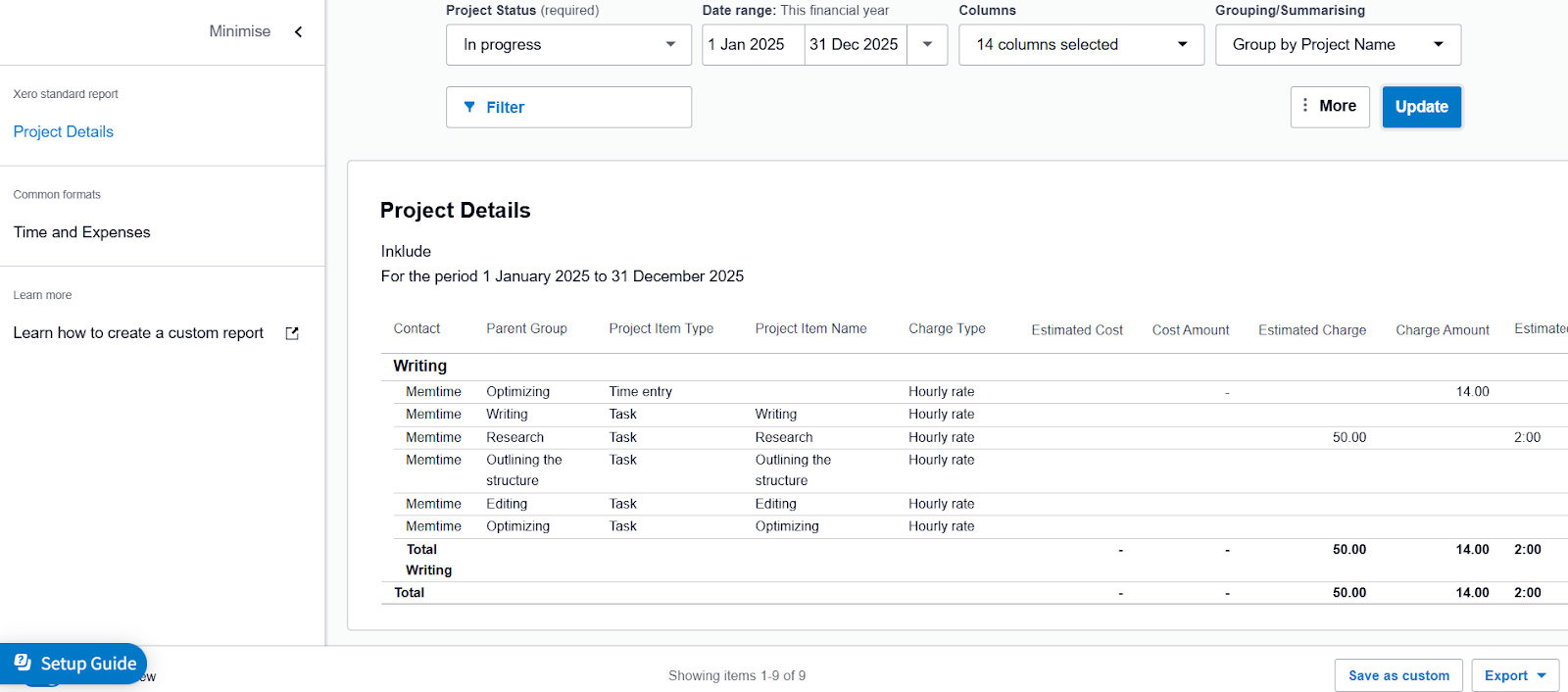
Reporting is not as sophisticated as dedicated time tracking apps, but it gives you a reasonable overview of project efficiency and budget management.
Cons of Xero’s native time tracking
- It’s not free. Xero’s native time tracking lives within Xero Projects. To access Xero, you can sign up for a free trial, but there isn’t a permanent free option. If you’re looking for free tracking, you might find this limiting.
- All that manual work can be tedious. Tracking time requires either starting and stopping the timer or entering hours manually. There’s no background tracking or automated reminders, so your entries might not reflect reality.
- Reporting is functional but limited. Xero provides basic project reports (hours worked, costs, and profitability), but they are less detailed than those of specialized time tracking apps.
- The timer is basic. The built-in timer works, but it offers limited features: no idle detection, task switching, or multiple timers running simultaneously. If you work on complex projects with overlapping tasks, you might need something more than a timer.
- No scalability for larger teams. If you work in a small team or are a solopreneur, Xero’s time tracking can be enough. But as your team grows, you’ll probably want more complex features or, at least, a more efficient way to track time.
Is Xero’s native time tracking right for you?
I dunno, you tell me. Is it?
Since you are reading this article, I’m willing to bet you find Xero’ native time tracking great for basic needs. After all, it’s intuitive, and so simple and easy to use.
But if you need advanced features and automation, I highly suggest you check out these 5 third-party integrations:
- Memtime. The app runs in the background and automatically records your work activity, then pushes reviewed time entries straight into Xero (Practice Manager or Projects). No timer needed.
- Timely. The tool automatically captures all your work time (including time spent in Xero) without you having to start or stop timers, and then syncs that tracked time into your Xero workflows.
- Harvest. The app lets you track hours and create invoices in Harvest, and then automatically copies those invoices into Xero.
- Jibble. The tool tracks hours (and team timesheets) and syncs them into Xero, including exporting tracked hours and mapping them to Xero earning rates.
- TimeTracker (by eBillity). The app works as a time and attendance tool that syncs employee timesheets and tracked work with Xero Payroll and accounting.
5 best Xero time tracking integrations
#1 Memtime
Memtime is that app. ✨ It’s our automatic time tracker I know you’ve been waiting for.
How come, you may ask?
Because we make time tracking easy and stress-free, that’s why our app’s mascot is a sloth. Sloths are known for their relaxed, unbothered nature, and our goal was to simplify time tracking and add a bit of nonchalance.
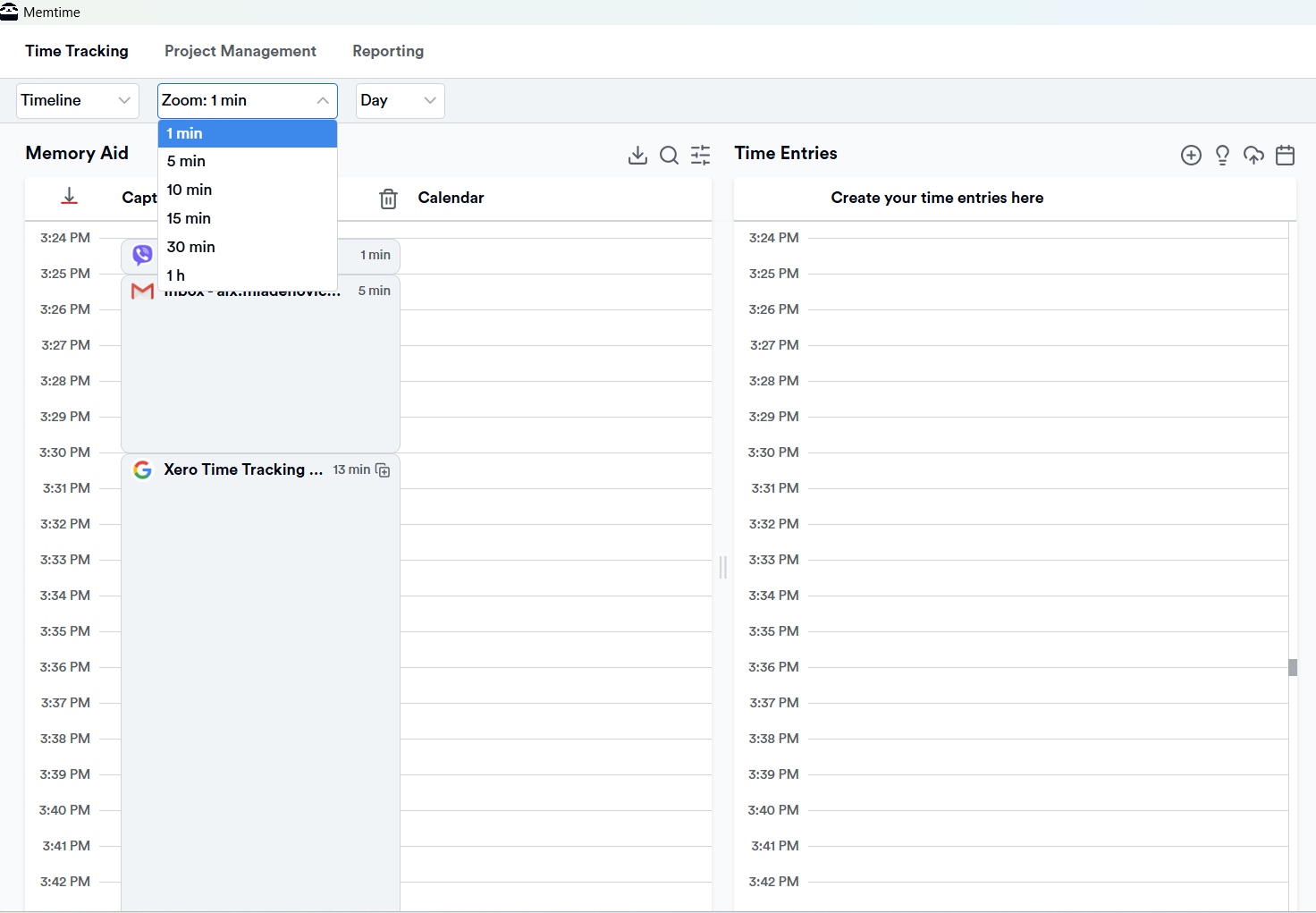
Here’s how Memtime works: it detects all the apps and programs you use and logs your time in them. You don’t have to use a Start/Stop timer or remember where your time went; Memtime runs silently in the background, capturing every second of your work in an automatic timeline.
All those tabs, documents, meeting hours, Slack, and Teams chats… all captured, in one place.
All you need to do is turn on your computer and start working like you usually would. You don’t even have to open the app.
Here’s a list of some of Memtime’s features worth noting:
- Memtime captures all your computer activity in a chronological timeline called Memory Aid.
- You can zoom in/out on your timeline to see your work in 1-60 minute intervals. Then, you can decide which activities to log as time entries and export them to Xero projects and tasks.
- Your time tracking data is visible only to you and stored locally on your computer. The data remains private until you choose to send it to your project or accounting software.
Now, let’s talk integration.
Memtime integrates with over 100+ project management and accounting tools via a 2-way sync. That 2-way sync lets you import your Xero projects and tasks into Memtime, then export time entries back to Xero. How cool is that? 🙂
Here’s how you connect Memtime with Xero:
- First, you download Memtime. You can start with our 2-week free trial; just sign up with your email, no credit card info required.

- You can choose a connected app during Memtime installation, or you can open Memtime, click the burger menu in the top right corner, and choose Connected Apps.

- You click the Find More Connected Apps button.

- You search for Xero (Xero Practice Manager or Projects). And you click the Install button to connect the two.
- If you are not logged into Xero, Meantime will prompt you to log in. And just before you connect the 2 apps, you will be prompted with a window in which Memtime requests to access your Xero account and projects.

- Once you have granted Memtime access and the installation is done, you click the Refresh Installed Connected Apps button to ensure Xero is authenticated. You’ll receive a verification code at the email address you provide.

- From this point forward, all your captured activities in Memory Aid can be turned into time entries in Xero. To do so, you need to click the “+” icon right above the Time entries column to select your captured activities that should be turned into time entries.

It’s that simple.
The moment you create a time entry and assign it to a Xero task, it appears in Xero, under the created project.
Just click the button below to start your free trial. You know you want it.
#2 Timely
Timely is an AI‑based automatic time tracking tool. Similar to Memtime, it captures everything you work on without manual timers or guesswork.
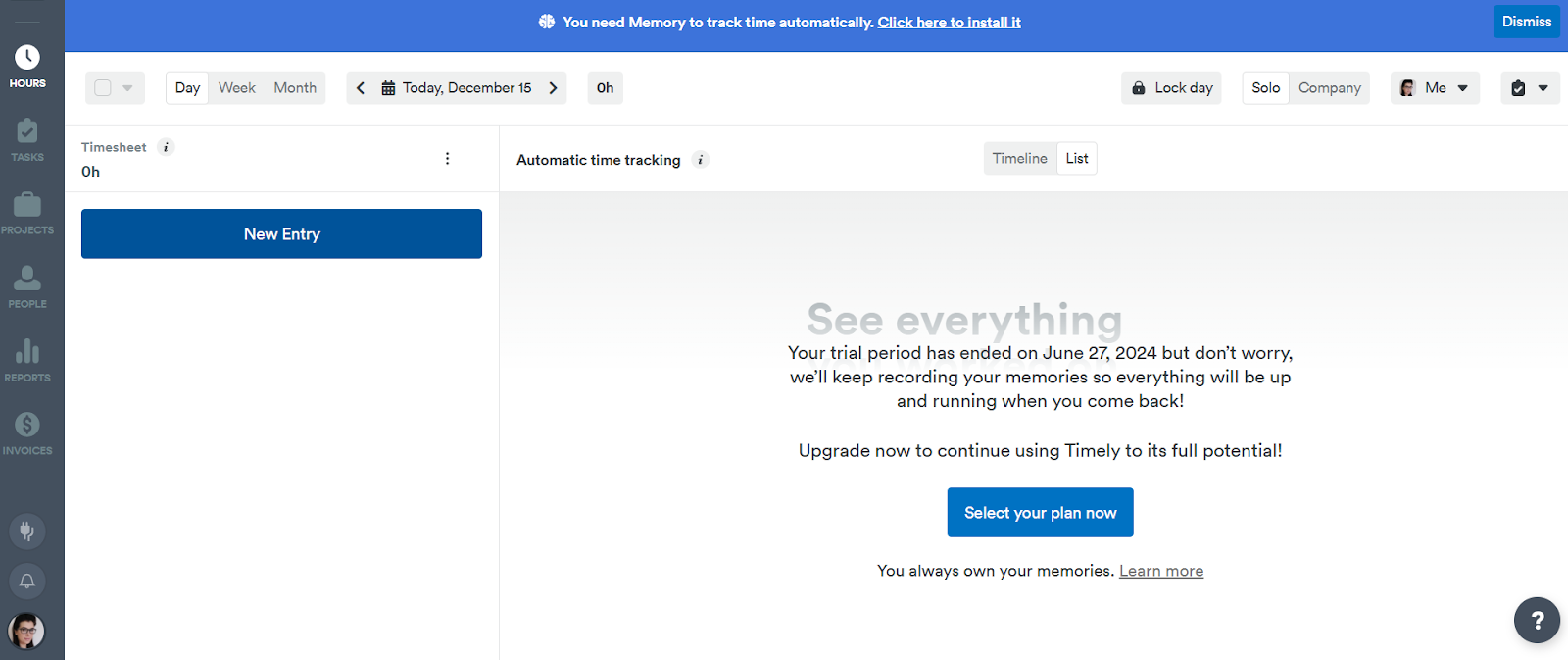
It quietly tracks where your time goes in apps, browsers, meetings, etc., and generates timesheets and project reports for you afterward. Time logs can then be categorized, edited, and reviewed without having to remember to clock in or out.
Here’s how Timely connects to Xero:
- Timely connects to Xero. The most common setup today uses automation platforms like Zapier or Zoho Flow to connect the 2 systems.
- Once you connect Timely to Xero, you can send tracked time entries from Timely into Xero.
- You can create automated workflows, so Timely time entries, projects, or clients are reflected in your Xero.
- Because the connection usually relies on platforms (Zapier, Zoho Flow, etc.), the exact way data flows depends on how you set up the automation. For example, you can set it up so that Timely time entries become Xero timesheets, invoices, contacts, or something else.
#3 Harvest
Harvest is a well-known time tracking and invoicing app built for teams and freelancers who want to log hours, manage projects, and bill clients.
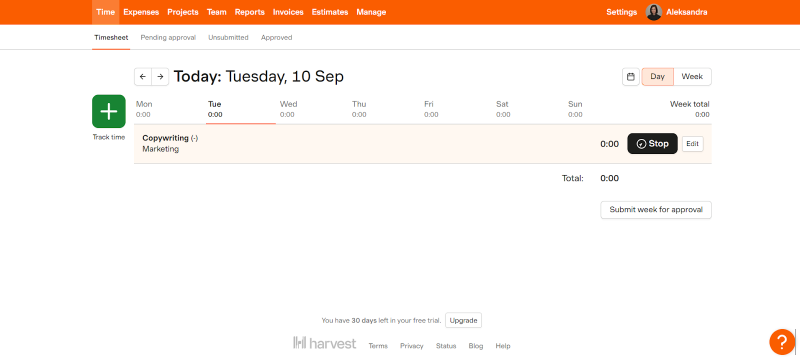
It lets you track time with a timer or timesheets, generate visual reports, and create invoices from your tracked time and expenses.
Here’s how Harvest connects to Xero:
- Harvest integrates with Xero so that invoices you create in Harvest can be copied into your Xero accounting system. Those copies include client details, line items, taxes, and payment data when a client pays.
- Invoices flow automatically: when you send an invoice in Harvest, it’s pushed to Xero immediately.
- If you record a payment in Harvest, you can choose to have that payment copied to Xero, so the invoice is marked as paid there as well.
Note that the integration focuses on invoices and payments rather than syncing raw time entries. Time logged in Harvest needs to be turned into an invoice first before it shows up in Xero.
#4 Jibble
Jibble is a time tracking tool that allows you to log hours, manage timesheets, and keep accurate records of work done. It includes features like automatic timesheet calculations, GPS clock‑ins, and reporting.

Here’s how Jibble connects to Xero:
- Once you log time in Jibble, you can send timesheet data directly to Xero.
- Jibble lets you generate invoices or invoice line items based on tracked hours and export them directly to Xero.
- You can import your Xero contacts and employee list into Jibble so time entries and billing details stay consistent across systems.
- In some regions (such as Xero Payroll in the UK, Australia, and New Zealand), Jibble can export payroll timesheets directly to Xero’s payroll module.
Here’s how Jibble integration works in the simplest terms: you connect your Jibble account to Xero by authorizing access from Jibble’s integrations menu, select the Xero organization you want to sync with, and authorize the connection. From that point, you can start exporting hours, payroll timesheets, or invoices into Xero.
#5 TimeTracker (by eBillity)
Time Tracker itself includes features such as clock in/out and timer-based tracking (manual or automated), weekly timesheets and approvals, GPS location tracking, expense tracking and reporting, and invoicing. It’s a well-rounded tool that comes with heaps of features.

Here’s how Time Tracker connects to Xero:
- Once connected, Time Tracker and Xero share key data like contacts, employees, inventory/billing items, and timesheets.
- Time tracked in Time Tracker (including approved hours and timesheets) can be pushed into Xero’s accounting or payroll modules.
- Time Tracker can generate client invoices from tracked time and expenses. These invoices can then be synced into Xero for billing.
- For regions where Xero Payroll is available (the UK, Australia, NZ, and parts of the US), employee timesheet data can sync into Xero Payroll to support payroll processing alongside accounting.
Wrapping up
So, is Xero’s native time tracking bad? Nope.
Is it exciting? Also nope.
It’s dependable, predictable, and gets the job done. And I’m guessing that’s why you need a bit more automation. That’s where integrations come in, and you have 5 of them to choose from.
Choose wisely; your future self (and your invoices) will thank you. 😌
Is Xero time tracking free?
Not really. You can try it with a free Xero trial, but full access requires a paid plan and the Xero Projects add-on. If you want something that automatically tracks time without manual entry, Memtime is a good option.
Can I track time automatically in Xero?
Out of the box, no. Xero is all about manual timers or entering hours.
Do I have to manually create invoices from tracked hours?
With Xero alone, yes, you usually pull hours into invoices yourself. Memtime makes this process a bit smoother. Once you review your captured time, you can export it to Xero tasks or projects and create invoices then.
Can I use Xero for team time tracking?
You can, but it gets clunky as your team grows. Timers, manual entries, and basic reporting can add up.
Memtime mess with my privacy?
No, not at all! All your tracked data is stored locally until you choose to send it to Xero. You’re in full control of what gets shared; no creepy spying!
Why even bother with Memtime if Xero already tracks time?
Because “good enough” isn’t always enough. 🙂 Memtime saves you time, reduces mistakes, and makes billing painless, so you can focus on work instead of timers and spreadsheets.

Aleksandra Mladenovic
Aleksandra Mladenovic is a copywriter and content writer with six years of experience in B2B SaaS and e-commerce marketing. She's a startup enthusiast specializing in topics ranging from technology and gaming to business and finance. Outside of work, Aleksandra can be found walking barefoot in nature, baking muffins, or jotting down poems.